Review suggestions and comments
You can propose changes to a screenplay without changing it, and the writer decides what goes in. Comments let you discuss a passage right where it is in the script.
Suggestions come from collaborators who write in Suggest mode and from AI assistants connected to the project. A suggested change doesn't become part of the script until someone accepts it.
Suggest changes
- In the editor, click the Editor mode menu at the top right, then choose Suggest.
- Type, delete, or replace text as you normally would.
New text is marked as an insertion. Deleted text stays in place, marked as a deletion, until someone reviews it. Replacing a selection records both.
A change you make in one go stays one suggestion: a word you type, the text you delete with repeated Backspace, a replacement, or text you drag to a new place. Pasted, cut, and dropped text is suggested the same way as typed text.
To stop suggesting, choose Edit from the Editor mode menu. See Change editor modes and view options.
Accept or reject suggestions
- In the editor, click to open the side panel, then click the Suggestions tab.
Each suggestion shows who made it, whether it's an Insertion, Deletion, or Replacement, and the old and new text. Suggestions from an AI assistant also show the assistant's name after "via". - To see a suggestion in the script, click its text.
- Do one of the following:
- Keep the change: Click .
- Discard the change: Click .
To discuss a suggestion before you decide, enter a comment in the field below it, then click .
Add a comment
- In the editor, select the text you want to comment on.
- Click the Comment button in the toolbar (or choose Insert > Comment…).
- In the Add a comment dialog, enter your comment, then click Comment.
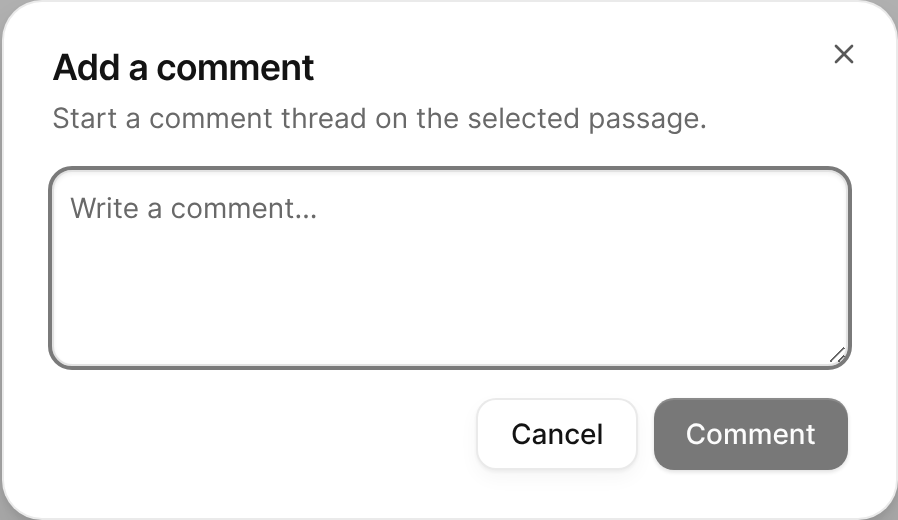
The Add a comment dialog for a selected passage.
The comment thread appears in the Comments tab of the side panel.

Reply to or resolve a comment
- In the side panel, click the Comments tab.
- Do any of the following:
- Go to the passage: Click Jump to next occurrence in the thread.
- Reply: Enter your reply in the Reply… field, then click Reply.
- Resolve the thread: Click .
- Reopen a resolved thread: Click .
When someone is writing a reply, you see that they're typing below the thread.