Review AI edits
When the project assistant or a connected AI client edits your screenplay, its changes arrive as suggestions. Nothing changes in the script, its exports, or its PDFs until someone accepts them.
Review screenplay suggestions
- Open the screenplay in the editor.
If you used the project assistant, you can click the link under its reply instead. - In the side panel, click the Suggestions tab.
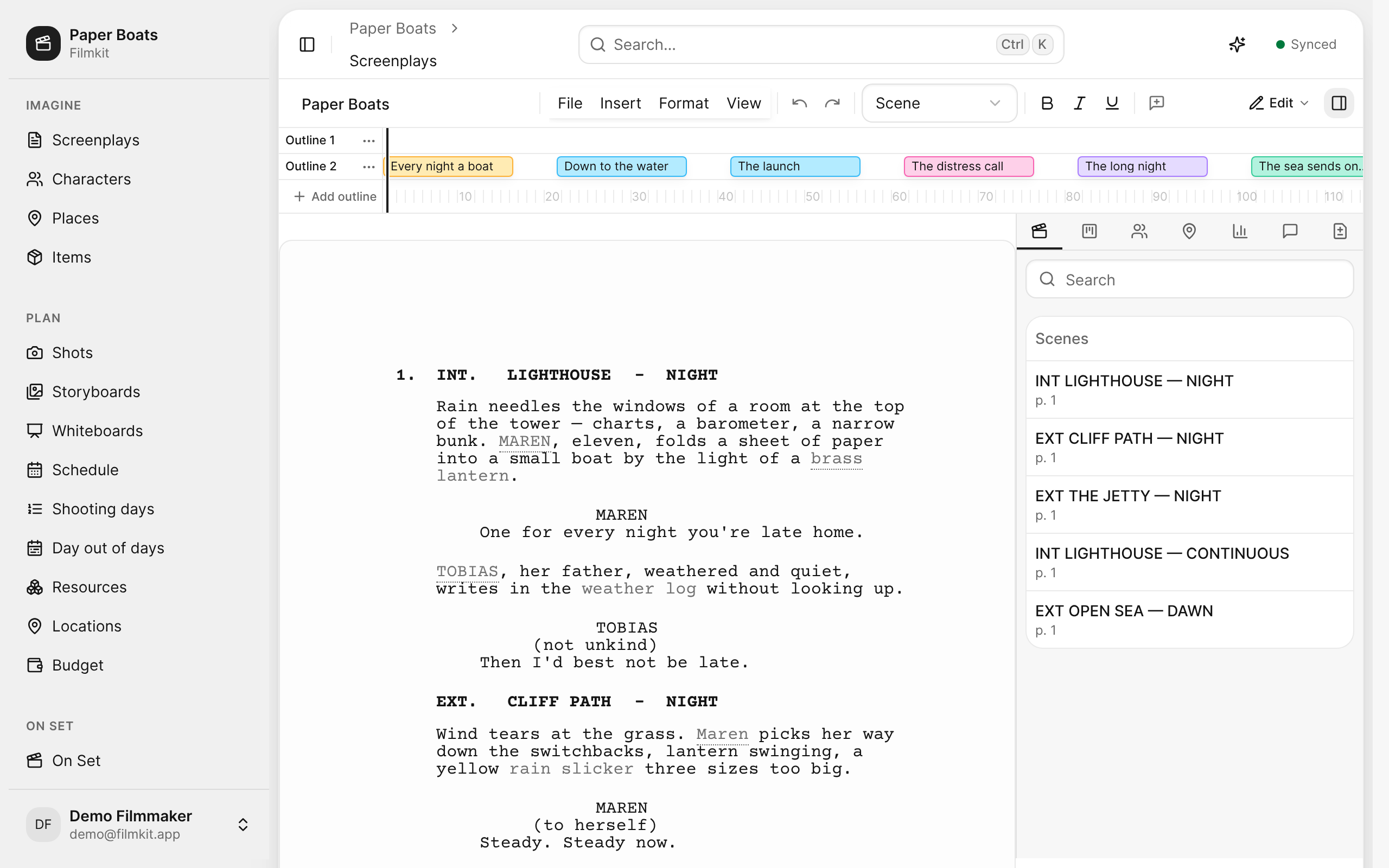
The screenplay editor's side panel; the Suggestions tab is the last of its tabs.
Each suggestion shows whether it's an Insertion, a Deletion, or a Replacement, the text it changes, and who proposed it. An AI edit shows your name followed by via and the name of the AI client. - Click a suggestion to jump to it in the script.
- Click Accept to apply the change, or Reject to discard it.

You can also comment on a suggestion before you decide, for example to ask the writer what they think. See Review suggestions and comments.
Check other changes an assistant made
Changes outside the screenplay text aren't suggestions. If you allowed it, an assistant can directly:
- Add or update characters, places, and items, and tag where they appear in the script.
- Change shooting days, events, and call sheets in the schedule.
- Add storyboard frames and generated images.
These changes appear for everyone right away, like edits from a collaborator. Review them where they live, and change or delete anything you don't want. See Intro to characters, places, and items and Build the shooting schedule.