Use the project assistant
You can ask the project assistant about anything in the project you're working on: which scenes a character appears in, what props a scene needs, or how a scene could be tightened. The assistant searches the project to answer and can propose changes for you to review.
Ask the assistant a question
- In a project, click the Open assistant button at the top of the window (or press ⌘+.).
The Assistant panel opens beside the page you're on.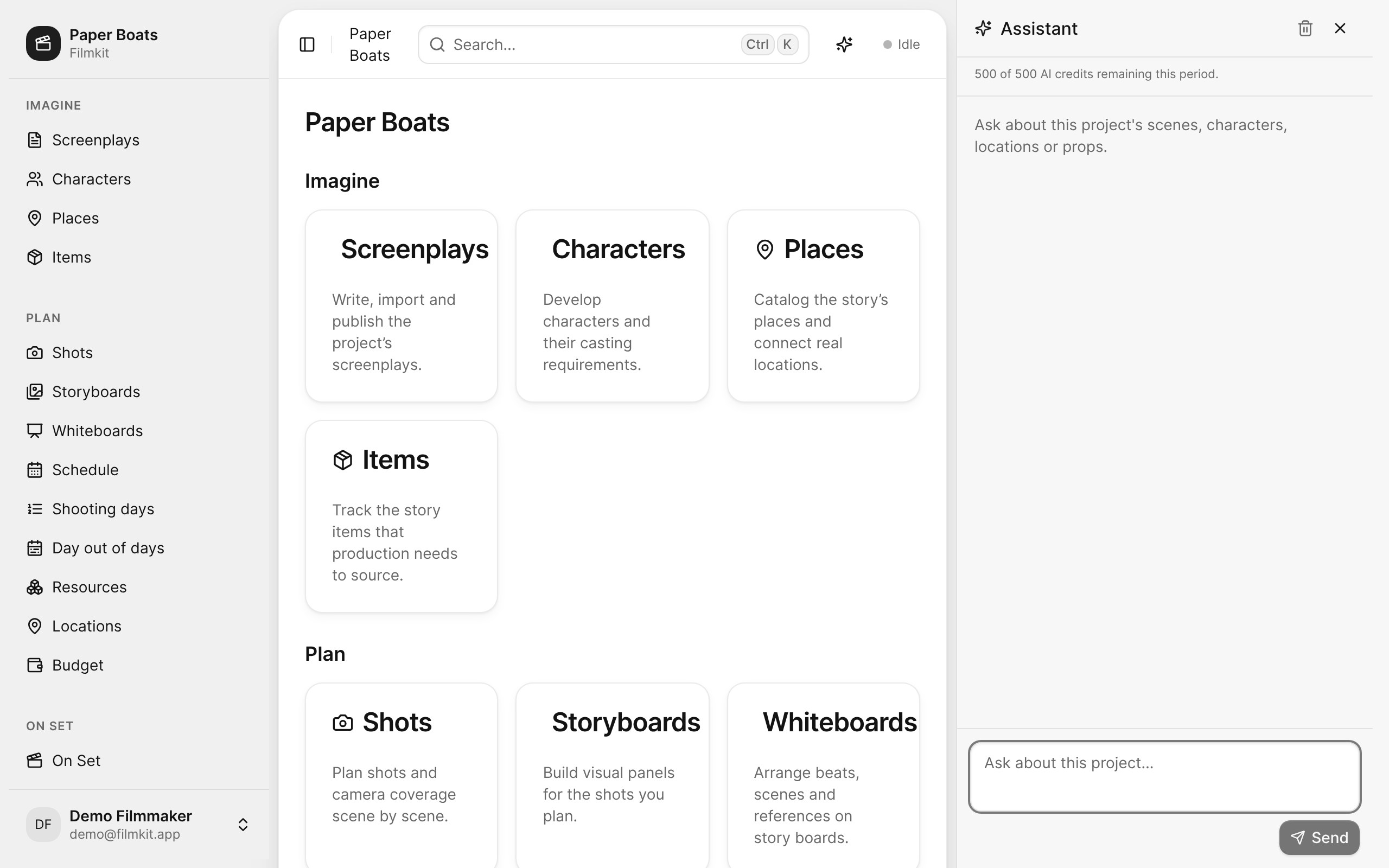
The project assistant open beside the Paper Boats project overview, showing the AI credit balance and the message field. - In the message field, enter your question, then press Return (or click Send).
To start a new line without sending, press Shift-Return. To stop a reply while it's being written, click Stop.

While the assistant works, it shows each step it takes, such as searching the screenplay.
Have the assistant propose screenplay edits
Ask the assistant to make a change, for example "Tighten the dialogue in scene 3" or "Rename Arne to Arnold everywhere."
The assistant adds its edits to the screenplay as suggestions and shows a link that says how many it proposed. Click the link to open the screenplay and review them. See Review AI edits.
If you can edit the project, the assistant can also update the breakdown, the schedule, storyboards, and casting roles' e-casting forms, and generate images. If you only have view access, it can answer questions but not change anything.
Check your AI credits
Each message uses AI credits from your space's allowance for the current period. The top of the Assistant panel shows how many credits remain. To see what a message costs, hold the pointer over Send. A message reserves credits when you send it, and the final cost depends on the length of the exchange. If too few credits remain, the panel tells you before you send.
Clear or close the assistant
Do any of the following:
- Start over: Click the Clear conversation button , then click Clear conversation. Only the conversation is cleared; suggestions the assistant already made stay in the screenplay until someone accepts or rejects them.
- Close the panel: Click the Close assistant button (or press ⌘+. again).
- Make the panel wider or narrower: Drag its left edge.