Change editor modes and view options
You can choose how your typing affects the screenplay, what the editor shows on the page, and which tools appear beside it. View options are saved in your browser and don't change what your collaborators see.
Choose an editor mode
- At the top right of the editor, click the Editor mode menu (it shows the current mode, such as Edit).
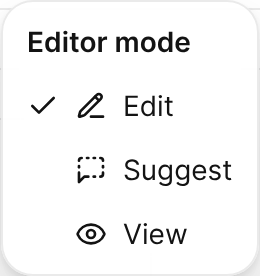
The Editor mode menu with Edit, Suggest, and View; Edit is selected. - Choose a mode:
- Edit: Your changes go straight into the script.
- Suggest: Your changes are recorded as suggestions that someone accepts or rejects. See Review suggestions and comments.
- View: The script is read-only, for reading or a table read.

If someone shared the screenplay with you for comments or review, you see only the modes your access allows: Comment (the script is read-only, but you can add comments) and, with review access, Suggest. See Share a screenplay for comments or review.
Show or hide items in the script
Choose View, then choose any of the following. A checkmark shows that the option is on.
- Element highlights: Colors the characters, places, and items linked in the text.
- Inline suggestions: Shows the list of matches while you type a scene heading or character name.
- Link hints: Underlines names in the text that match the catalog but aren't linked yet. Click a hint to link it.
- Typewriter mode: Keeps the line you're writing at a comfortable height on the screen.
- Focus mode: Hides everything but the page and fades every line except the one you're writing. See Write with focus mode, goals, and sprints.
- Spellcheck: Turns your browser's spelling check on or off.
- Show omitted content: Shows omitted elements and scenes struck through. When it's off, omitted elements are hidden and an omitted scene shows only its number and OMITTED, as in the PDF.
- Show outlines: Shows or hides the outline lanes above the page strip.
- Show scheduling data: Shows each scene's length in eighths of a page in the Scenes tab of the side panel.

Use the side panel
The side panel shows tools for the whole screenplay, one tab at a time.
- To open the side panel, click at the top right of the editor, or choose View > Tooling sidebar (or press ⌘+.).
- Click a tab at the top of the panel:
- Scenes: Every scene with its page. Click a scene to jump to it. To see each scene's length in eighths of a page, choose View > Show scheduling data.
- Beats: The story beats of the project. Drag a beat into an outline above the page strip. See Outline the story above the timeline.
- Characters and Places: The catalog entries and how often each is linked in the script. Click the count in the Links column to jump to the next mention, or click the Add button to add an entry.
- Statistics: Your writing goal, pages, scenes, speaking characters, word counts, elements by type, repeated words, and dialogue by gender.
- Comments and Suggestions: See Review suggestions and comments.
- To-dos: A checklist for the screenplay. See Write with focus mode, goals, and sprints.
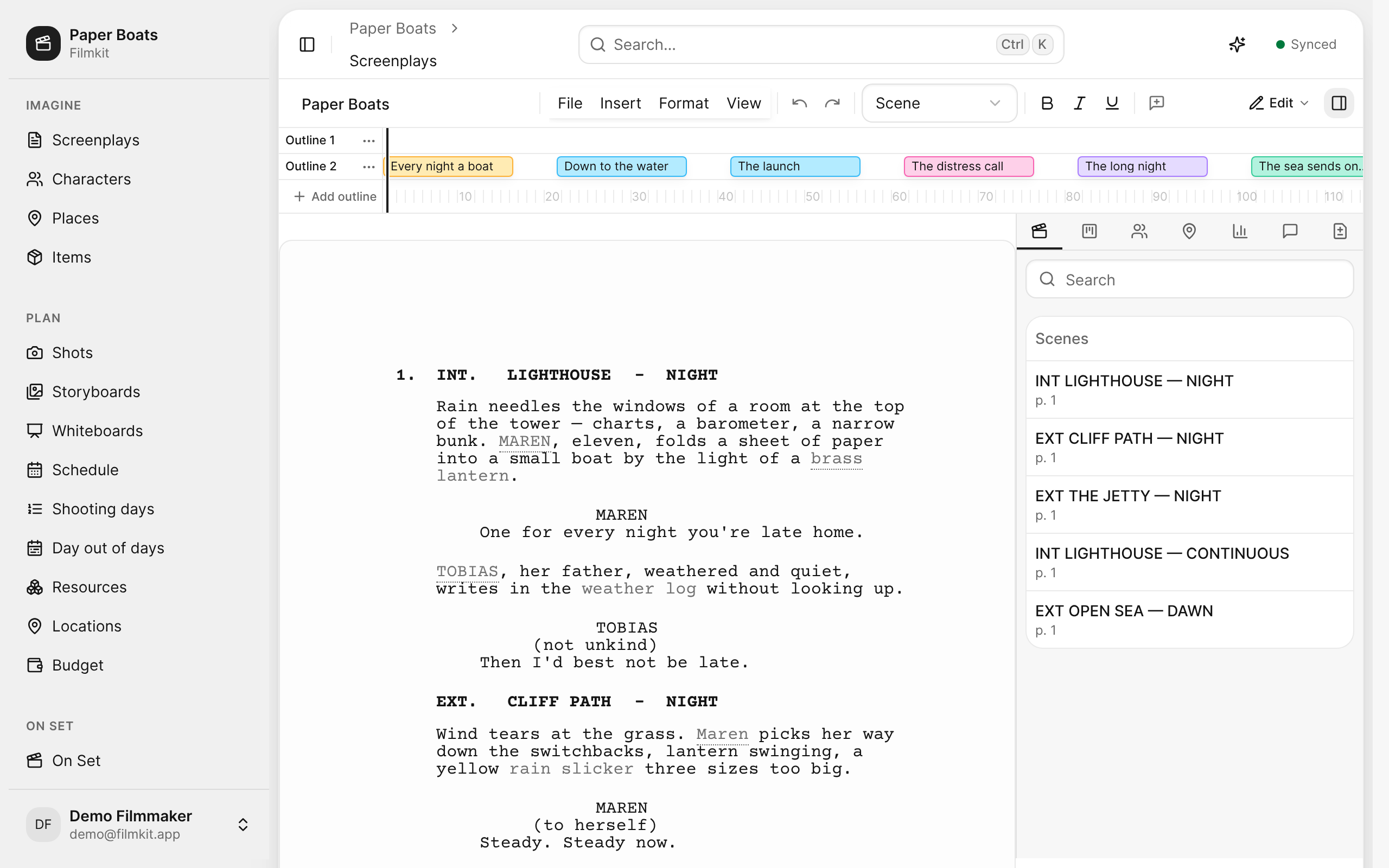
The side panel open on the Scenes tab, listing the five scenes of Paper Boats with their pages. 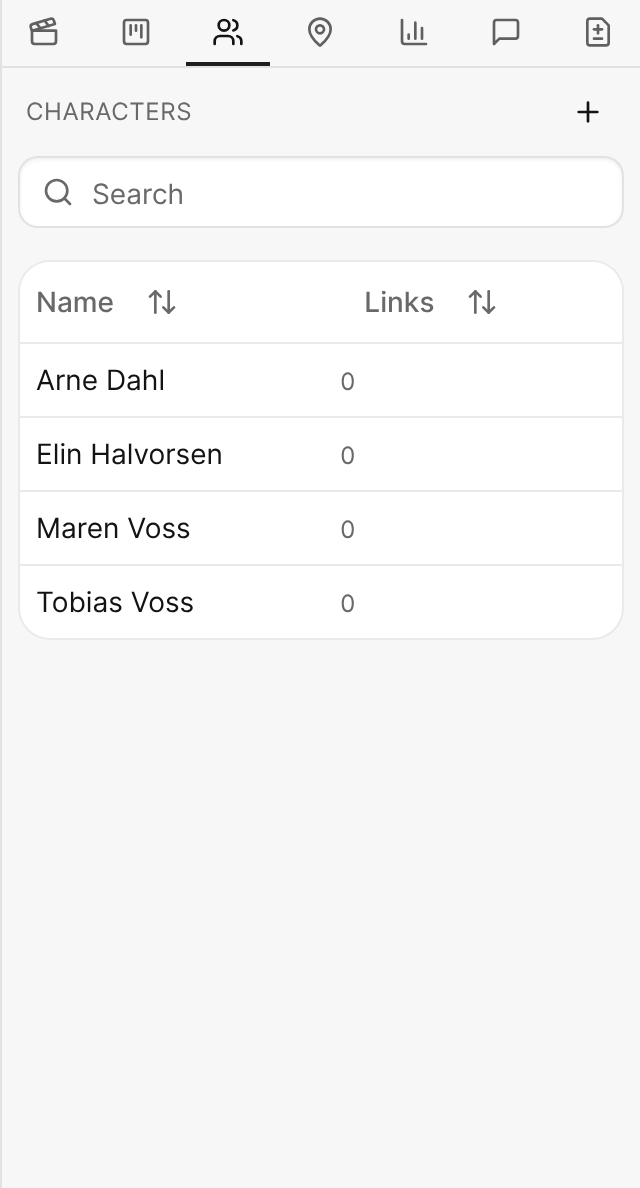
The Characters tab of the side panel, with each character and the number of times it's linked in the script. 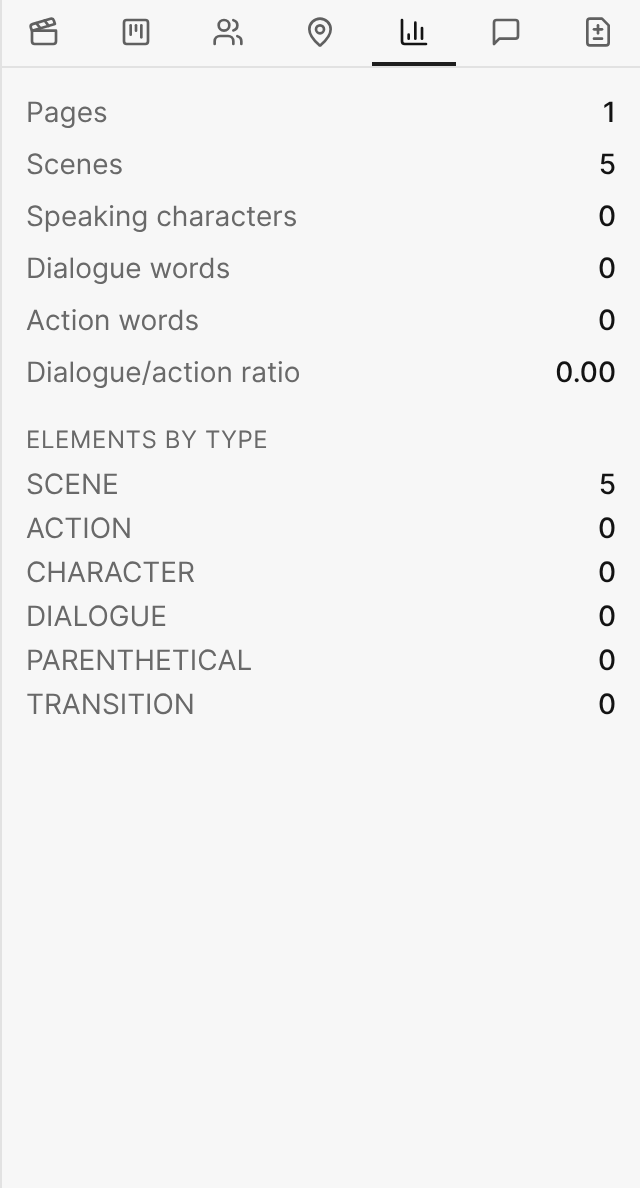
The Statistics tab of the side panel, with pages, scenes, speaking characters, and word counts.


Move around the script
Do any of the following:
- Jump to a page: Click a page in the page strip below the toolbar.
- Jump to a scene: Click the scene in the Scenes tab of the side panel.
- Jump to a bookmark: Choose View > Bookmarks, then choose the bookmark.
Show or hide annotations
People can draw on the screenplay with a finger or stylus in the FilmKit app on iPhone, iPad, or Android. When anyone has drawn on the script, Annotations appears in the toolbar.
- Click Annotations, then select or deselect each person's layer.