Back up and compare versions
FilmKit keeps numbered backups of your screenplay so you can look back at an earlier draft, see exactly what changed, or start again from it. Backups are fixed copies: nothing you write later changes them.
While you're editing, FilmKit saves an automatic backup about every 10 minutes if the script has changed. You can also save a backup yourself at any moment, for example before a big rewrite.
Save a backup
- In the editor, choose File > Backups.
- In the Backups dialog, click Save backup, then click Save backup again to confirm.
The new backup appears at the top of the list with its version number, such as v4, and a Manual badge. Automatic backups show an Auto badge.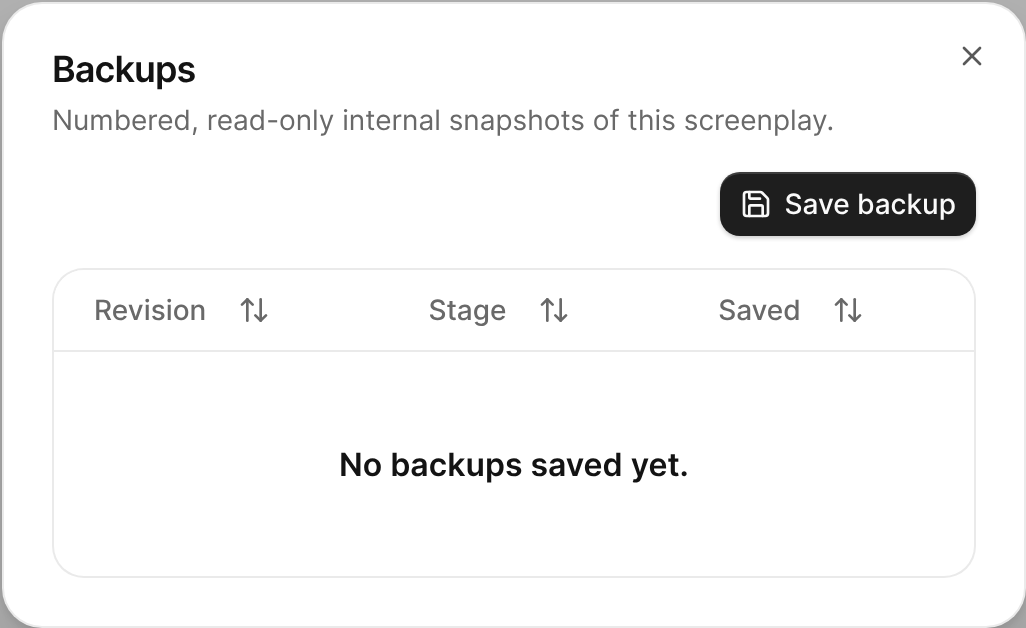
The Backups dialog, with the Save backup button and the list of saved backups.

View or download a backup
In the Backups dialog, find the backup, then do any of the following:
- Read it: Click the View button . A read-only preview of the backup opens.
- Download it as a PDF: Click . If the PDF is still being prepared, try again in a moment.
- Download it as ScreenJSON: Click the ScreenJSON button next to the PDF button.
Compare two versions
- In the Backups dialog, click the Compare button next to the earlier backup.
The Compare screenplay versions dialog opens with that backup as the Earlier version. - In the Compare with menu, choose Current screenplay or another backup.
- Click Compare.
FilmKit counts the Inserted, Deleted, Modified, and Moved elements, then lists each change with its Before and After text.
Restore a backup
Restoring never overwrites your screenplay. FilmKit creates a new screenplay from the backup, so you keep both.
- In the Backups dialog, click the Restore button next to the backup.
The restored copy opens as a new screenplay in the project.