Edit the title page and export
You can fill in the title page that opens your script, then export the screenplay to share it or to open it in another screenwriting app.
Edit the title page
- In the editor, choose File > Title page & metadata.
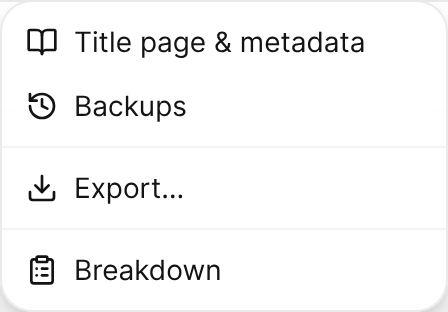
The File menu, with Title page & metadata, Backups, Export, and Breakdown. - In the Title page section, enter what should appear on the cover:
- Title, Credit (such as "written by"), and Author
- Source, for a script based on other material
- Draft date, Copyright, Contact, and Notes
- Cover notes, such as "First draft — not for distribution"
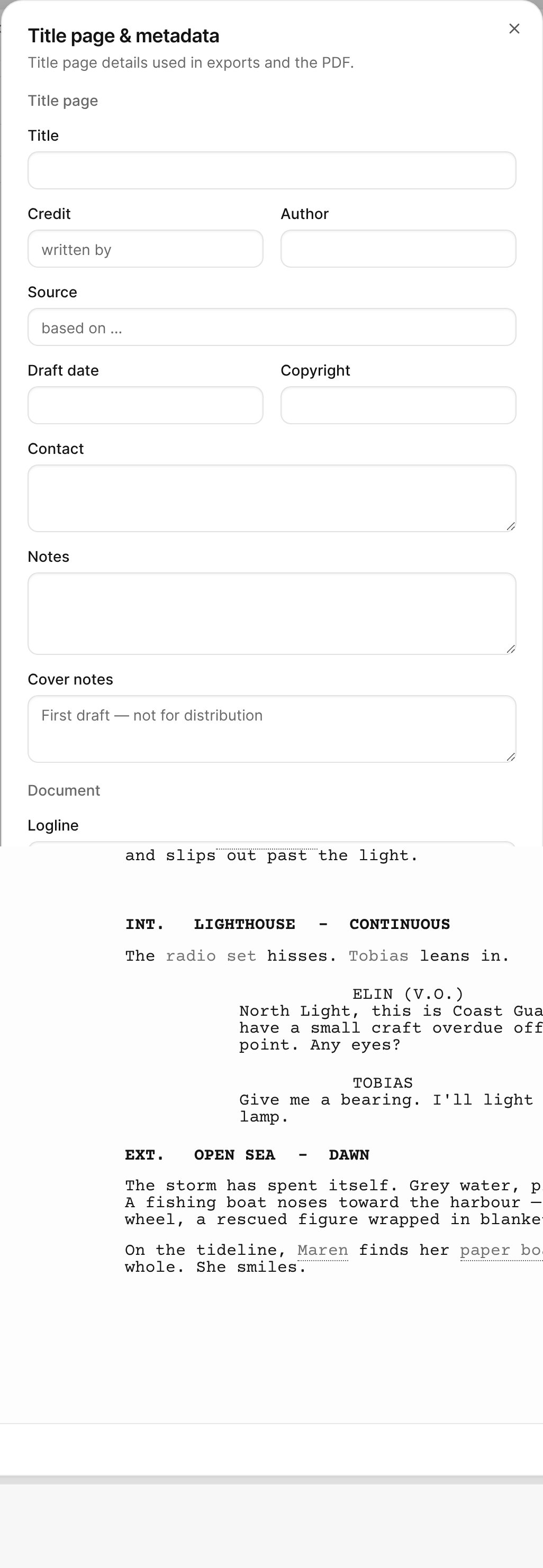
The Title page & metadata dialog, with the title page fields and the document details. - In the Document section, add the details that travel with the script:
- Logline: A one-sentence summary of the story.
- Genre and Themes: Separate several with commas.
- Written by and Contributors: One person per line, first names then last name.
- Based on: One source per line, as "type: title", such as
novel: The Original Book. - Revision draft and Round: The revision color and round printed on the draft.
- Click Save.
The title page appears at the front of the screenplay when you export it.


Export a screenplay
- In the editor, choose File > Export….
- In the Export screenplay dialog, choose a scope:
- Whole screenplay: Exports the full current screenplay.
- Current scene: Exports only the scene the cursor is in. To use this option, click in a scene before you open the dialog.
- Choose a format:
- PDF: A production-ready PDF.
- Final Draft (FDX): For Final Draft and other screenwriting apps.
- Fountain: Plain-text screenplay markup.
- Word (DOCX): A Word document with screenplay styling.
- OpenDocument (ODT): For LibreOffice and compatible editors.
- ScreenJSON: An interchange file. Available only for the whole screenplay.
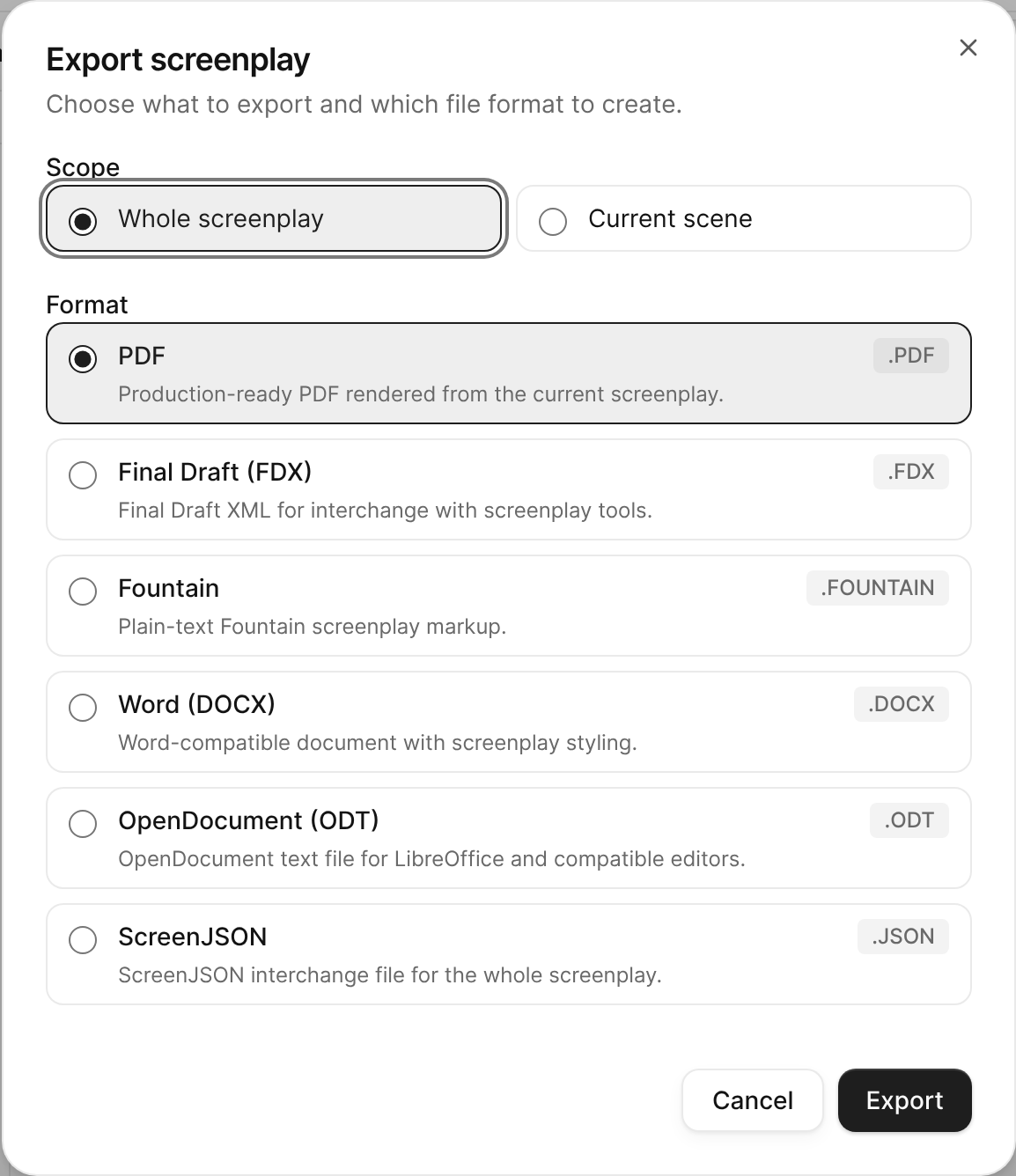
The Export screenplay dialog, with the scope and format choices. - For a PDF, you can type a Watermark, such as the reader's name or CONFIDENTIAL. It's printed diagonally in light gray across every page. Leave it empty for no watermark.
- Click Export.
The file downloads to your computer.

To print or hide scene numbers in the PDF, use Print scene numbers in the screenplay's settings. See Manage revisions and locks.