Publish and distribute documents
You can publish a document when it's ready to leave the project: a call sheet for a shooting day, a colored script revision, the sides for a day, or the shot list. Each publish creates a new numbered revision that doesn't change when you keep working.
Publish a call sheet
- Open the shooting day's call sheet.
- Click Publish, choose a Publication stage (Preliminary or Final), then confirm.
- To email it, click Send callsheet, choose the recipients, then click Send.
See Create and publish call sheets for every option, including updating a call sheet without sending new emails.
Issue a script revision
To issue a colored revision, the screenplay must use the Issued revisions publishing mode and its pages must be locked. In the screenplay's settings, click Issue revision. You can also send the revision to the project's crew while you issue it. See Manage revisions and locks.
Publish the sides for a shooting day
Sides use the latest issued revision of each screenplay scheduled on the day, never the live working script.
- Publish the shooting day's call sheet.
- On the call sheet, in the Day sides section, click Publish day sides, then confirm.
FilmKit publishes one sides PDF for each screenplay on the day.
Publish a shot list
- In a project, click Shots in the sidebar.
- Click .
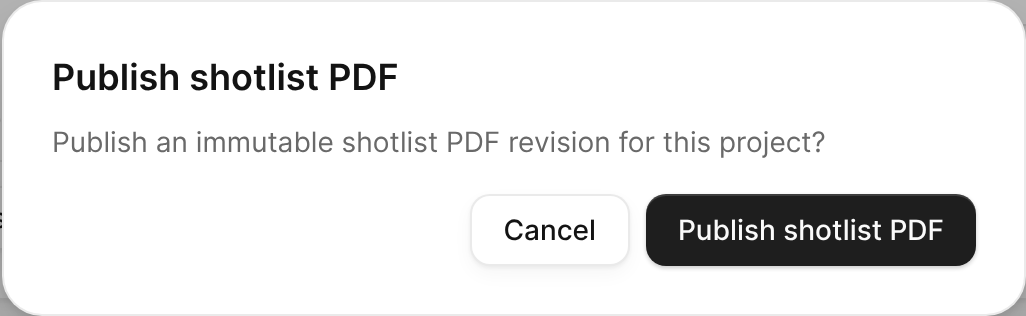
The Publish shotlist PDF confirmation on the Shots page. - Click Publish shotlist PDF to confirm.
FilmKit renders the PDF. To see it, click Open publications.

Download a published document
- On the project overview, click Publications in the Manage group.

The Manage group on the project overview, with the Publications card. - Find the document and revision you want, then click .
The PDF downloads to your computer. If a revision is still being rendered, try again in a moment.

Track who received a call sheet
The Distribution panel on a published call sheet shows every recipient, whether the email was sent, whether they Opened the call sheet, and which revision they Confirmed. Do any of the following:
- Send it again to one person: Click Resend in their row.
- Stop one person's link from working: Click Revoke in their row, then confirm.
- Stop every link from working: Click Recall call sheet, then confirm. You can publish and send an updated call sheet afterward.