Connect external calendars
You can show appointments from Google Calendar, Outlook, a CalDAV server or an iCalendar subscription alongside your schedule. External events are read only.
Connect a calendar
Choose the calendar service you want to connect. For an iCalendar subscription, obtain an HTTPS or webcal URL from your calendar app.
- Go to the settings for the scope you want:
- Personal: Click your name in the sidebar, then choose Account Settings. Only you see these events.
- Space: Open Space Settings. Space administrators can connect calendars for members to see in the space's projects.
- Project: In Schedule, choose File > Calendars. People who can edit its schedule can connect calendars for everyone who can view that schedule.
- In External calendars, click Connect calendar.
- Choose a Calendar source:
- Google Calendar or Outlook Calendar: Click Connect account, approve read-only access in the provider's browser page, then choose an account and calendar. If a provider is unavailable, your FilmKit administrator needs to enable it.
- CalDAV: Enter the public HTTPS server URL, username and app password, then click Connect account and choose a calendar. If your provider redirects to a separate server, use its final server or calendar-home URL.
- iCalendar: Paste the subscription link in iCalendar URL.
- Enter a name, choose a colour, then click Connect calendar.
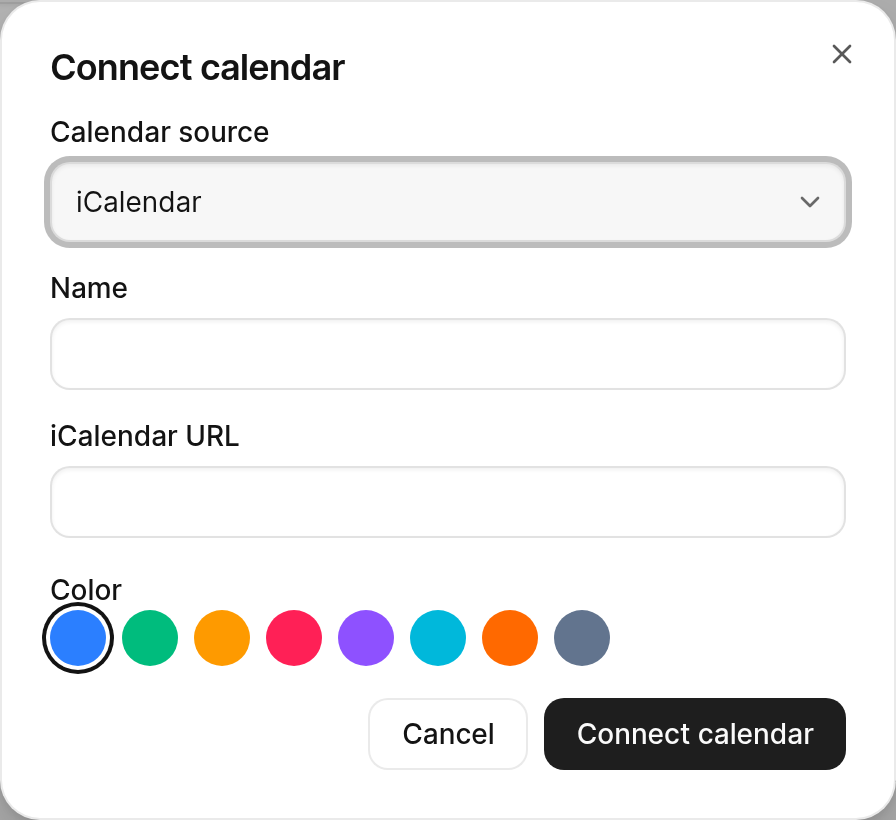
The Connect calendar dialog with name, iCalendar URL and colour fields.

View external events
- In a project, click Schedule in the sidebar.
- Choose the day, week or month view.
- Click an external event to view its time, location and description.
In calendar views, click a connected calendar's name to hide or show its events. The list view and schedule viewer show external events in a monthly list.
FilmKit refreshes connected calendars when you open the schedule after the saved copy is 15 minutes old. Reopen or refresh the view to see a completed update. FilmKit shooting days returned through another calendar appear once when their original identifiers are preserved.
Refresh or disconnect a calendar
- Return to External calendars in the settings where you connected the calendar.
- Do one of the following:
- Update events: Click Refresh. You can request an update once a minute. If the calendar cannot be read, FilmKit keeps its last saved events.
- Stop showing events: Click Disconnect. FilmKit removes the connection and its saved events.
To change the subscription link, disconnect the calendar and connect it again.
A connected Google, Microsoft or CalDAV account can supply calendars at several scopes. Disconnect account removes every calendar using that account, including calendars shared with spaces and projects. To remove one calendar, use its Disconnect button instead. If access expires or is revoked, reconnect the account. Reconnect CalDAV to discover newly added collections.
Native apps provide the same scoped calendar settings and show external appointments in a separate read-only schedule agenda. Return to FilmKit after browser consent and refresh the account list.