Set up My part for cast and crew
You can give everyone on your production their own My part view. Everyone sees their call times; actors also see their scenes and lines, and crew also see their department's scenes and resources. They never see the working screenplay or anything else in the project.
To set up My part, you need to be a member of the space that owns the project. The first three tasks are for everyone, cast and crew; the last two are only for actors.
Add the person to the project
- In a project, click Contacts in the sidebar, then click Connect contact.
- Choose the person, choose their Role and Department, and choose Cast or Crew as the Type.
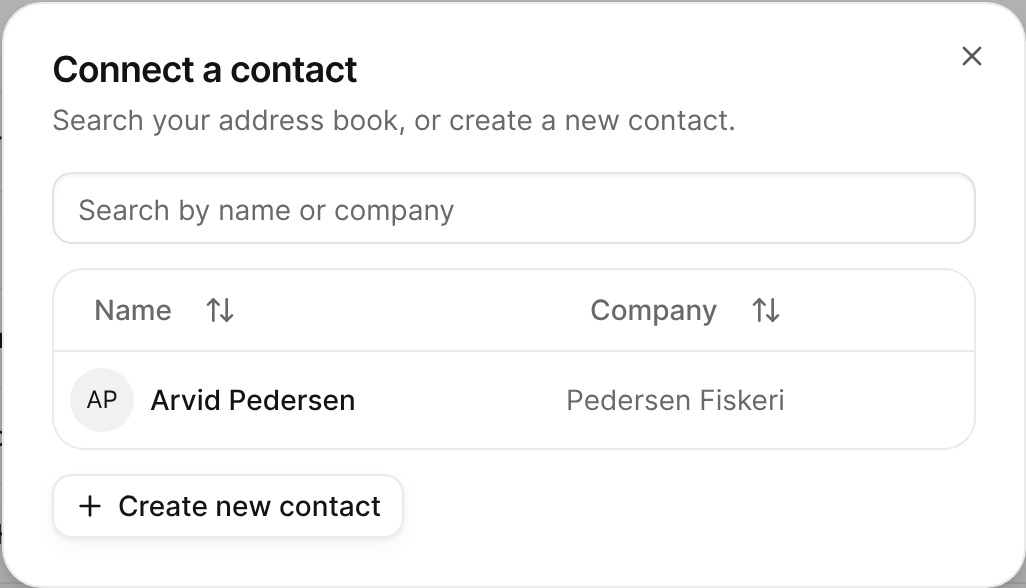
The Connect a contact dialog listing address-book contacts to choose from. - Click Connect.

For crew, the role's department decides which breakdown items show under each scene. See Add contacts to a project.
Link their contact to their FilmKit account
- In the address book, click the contact.
- In the Access card, enter the person's email in the Invite account email field, then click Send access invite.
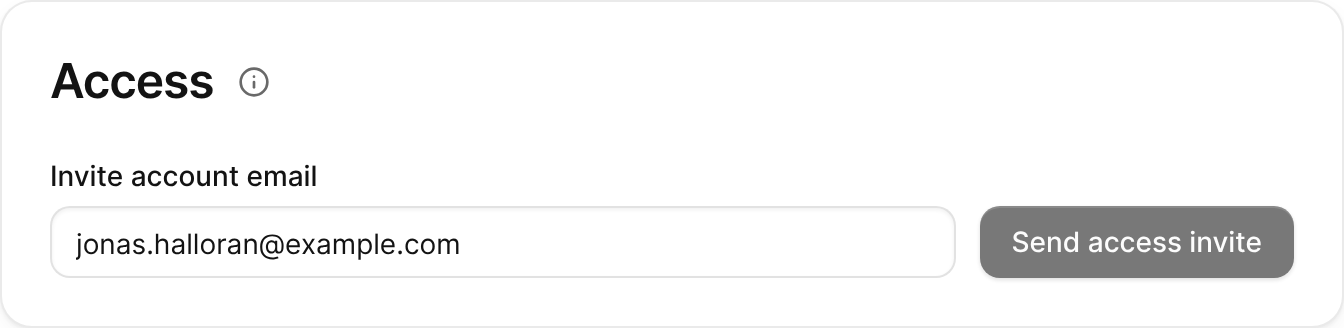
The Access card on a contact's page, for inviting the contact's FilmKit account.

When they accept the invite, My part appears in their sidebar for every project whose roster they're on. See Share access and self-service links.
Publish call sheets
Call times in My part come from published call sheets. Publish the call sheet for each shooting day, and everyone on it, cast and crew, sees their call. See Create and publish call sheets.
Cast the character
Link the character an actor plays to their contact.
- In a project, click Characters in the sidebar, then click the character.
- On the Edit tab, go to Casting, click Add contact, then choose the actor's contact.
Their character, its looks, and the scenes it's in then appear in their My part. See Build characters and the character bible.
Send them an issued revision
Actors see their scenes only from a script revision you issued and sent to them, never from the draft you're writing. To issue a revision, the screenplay's Mode must be Issued revisions and its pages must be locked.
- In the screenplay settings, click Issue revision.
- Under Project crew recipients, select the actor.
- Click Issue revision.
Each time you issue a new revision and send it to them, their My part shows the new one. See Manage revisions and locks.