Read your scenes and lines
If you're cast, you can read every scene your characters are in, with your cues and lines highlighted like a marker on printed sides. The scenes come from the script revision the production issued and sent to you.
Find your scenes
- In a project, click My part in the sidebar.
- Click the Scenes tab.
Your scenes are listed under the screenplay's title, with the revision they come from, such as Blue revision. Each scene shows how many speeches and words you have in it.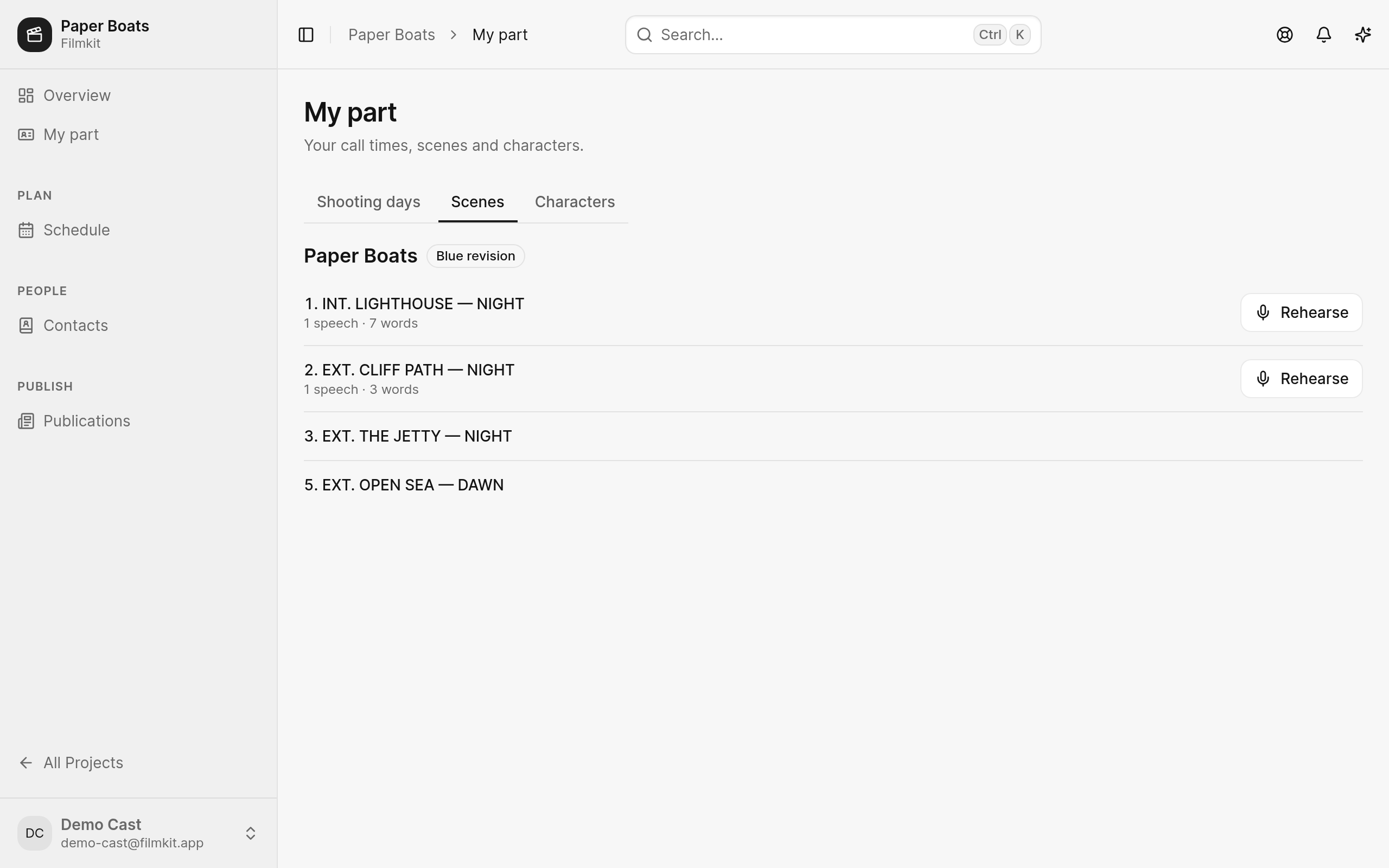
My part on the Scenes tab, listing the scenes Maren is in from the Blue revision.

If the tab says No script yet, the production hasn't issued you a script revision. Your scenes appear as soon as they do.
Read a scene
- On the Scenes tab, click a scene.
The scene opens on the Script tab. Your character's name above each of your speeches, and the lines under it, are highlighted.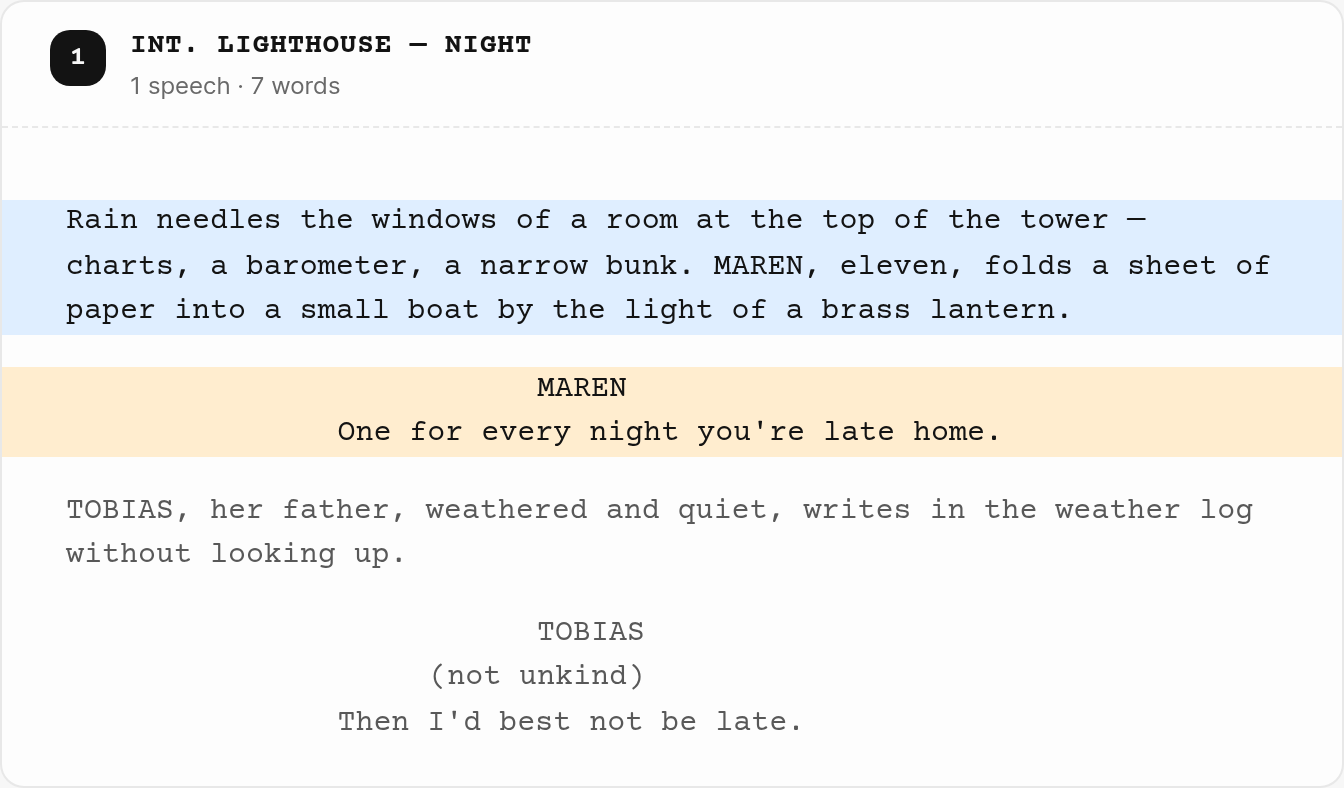
Scene 1 of Maren's sides, with her cue and line highlighted. - To go back to your list of scenes, click next to the scene heading.

A scene where your character appears but doesn't speak is listed too, without a speech count, so you know you're in it.