Rehearse your lines
If you're cast, you can run your lines through a scene: FilmKit shows the cue, the line or action right before you speak, and keeps your line hidden until you reveal it. You can also have the other characters' lines read aloud.
Rehearse a scene
- In a project, click My part in the sidebar.
- Click the Scenes tab, then click Rehearse next to a scene.
Rehearse opens on your first line in the scene. The Cue shows what comes right before it, and Your line shows your character's name with the line hidden.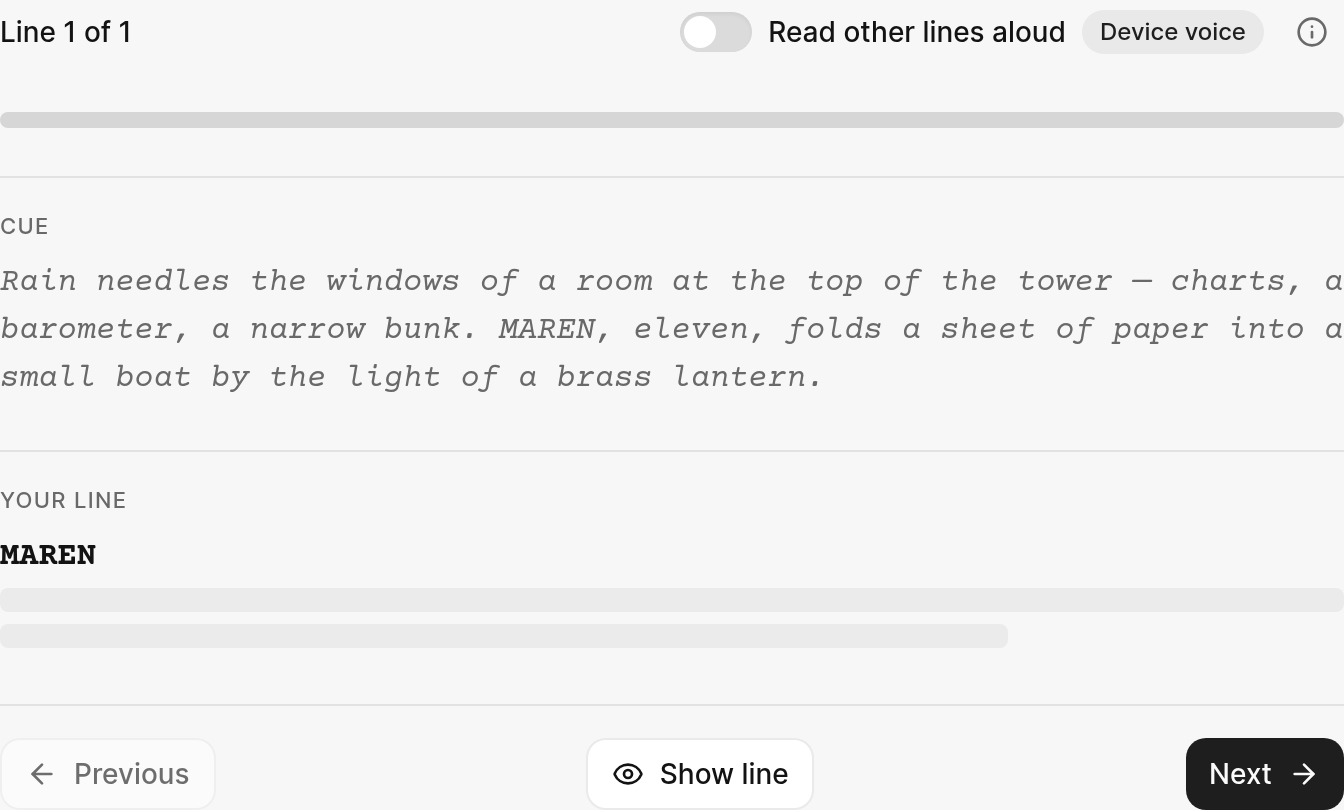
Rehearse mode showing the cue, with Maren's line hidden until it's revealed. - Say your line, then click Show line (or press Space) to check it.
- Click Next (or press Space again, or press the Right Arrow key) to go on to your next line.
The progress bar and the line count, such as Line 1 of 3, show how far through the scene you are. After your last line, FilmKit shows Scene complete.

To go back a line, click Previous (or press the Left Arrow key). To run the scene again, click Start over.
You can also open Rehearse from a scene you're reading: click the Rehearse tab above the script.
Hear the other lines read aloud
Do any of the following:
- Read the other lines aloud at every step: Turn on Read other lines aloud. Each time you go to a line, FilmKit reads the other characters' lines that lead up to it.
- Hear the cue again: Click the Play cue button next to Cue.
If the production uses Robovoice, an AI voice reads each character's lines in its own voice, labelled AI-generated · Robovoice; the production pays for it. Otherwise, and for any line Robovoice can't read, your browser's own voice reads them, labelled Device voice. See Read the other lines with Robovoice.