Share access and self-service links
You can give a contact read-only access to the projects they work on by linking them to their FilmKit account. You can also send any contact a private link so they can fill in and update their own details, without a FilmKit account.
Give a contact read-only access to their projects
A linked contact can open every project whose roster they're on, read-only. They see the project Overview, Schedule, Contacts, and Publications. If their role on the project is a logging role, such as Script Supervisor, a camera assistant, or the sound mixer, they also see On Set so they can log takes. They never open the screenplay or other working documents. To share a project with someone as a collaborator instead, see Invite people to a space.
- In the address book, click the contact.
- In the Access card, enter the person's email in the Invite account email field.
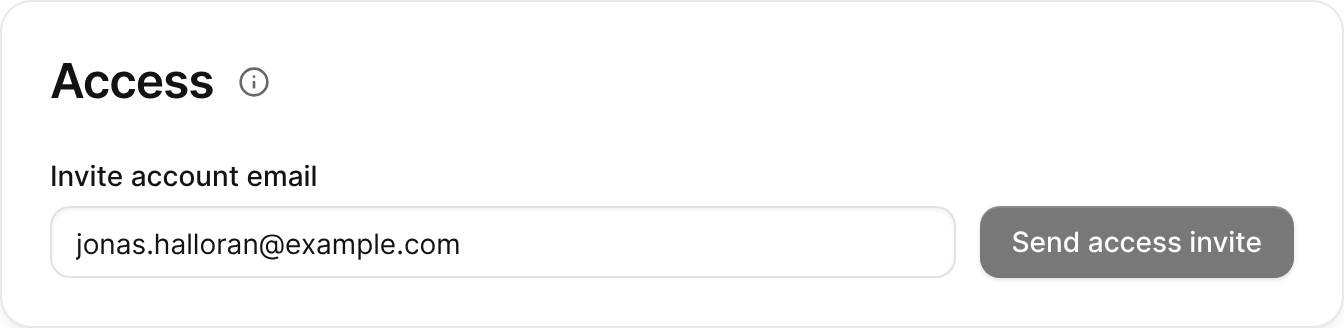
The Access card on a contact's page, for inviting the contact's FilmKit account. - Click Send access invite.
FilmKit emails the person an invitation. Until they accept it, the invite appears under Pending invites with its expiry date. Invites last seven days.

When the person accepts, the Access card shows their account and the contact gets a Linked badge in the address book. They get access only to projects where the contact is on the roster. See Add contacts to a project.
Revoke account access
Do one of the following:
- Cancel an invite that hasn't been accepted: In the Access card, click Revoke invite next to the invite, then confirm.
- Remove access for a linked account: In the Access card, click Revoke access, then confirm.
Revoking access doesn't change the contact or their project assignments. To remove a person's access to one project only, remove them from that project's roster.
Send a self-service info link
A self-service link opens a form where the contact can enter their name, email, phone, emergency contact, address, and food preferences. They don't need a FilmKit account.
- In the address book, click the contact.
- In the Self-service info link card, click Create link.
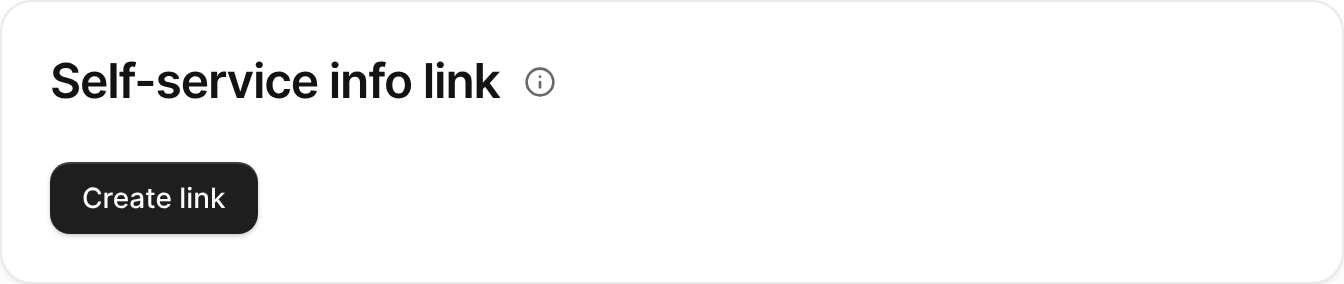
The Self-service info link card on a contact's page. - Click Copy link, then send it to the contact by email or message.
The card shows the date until which the link works.

When the contact clicks Save my details on the form, their changes appear on the contact in your address book.