Invite people to a space
You can invite the people you work with to become members of your space. Members can open and edit every project in the space, so you invite each person once rather than for every project.
To give someone read-only access to a single project instead, share access with their contact. See Share access and self-service links.
Invite someone
- In the space sidebar, click Space Settings.
- In the Members card, enter the person's email address in the Invite by email field.
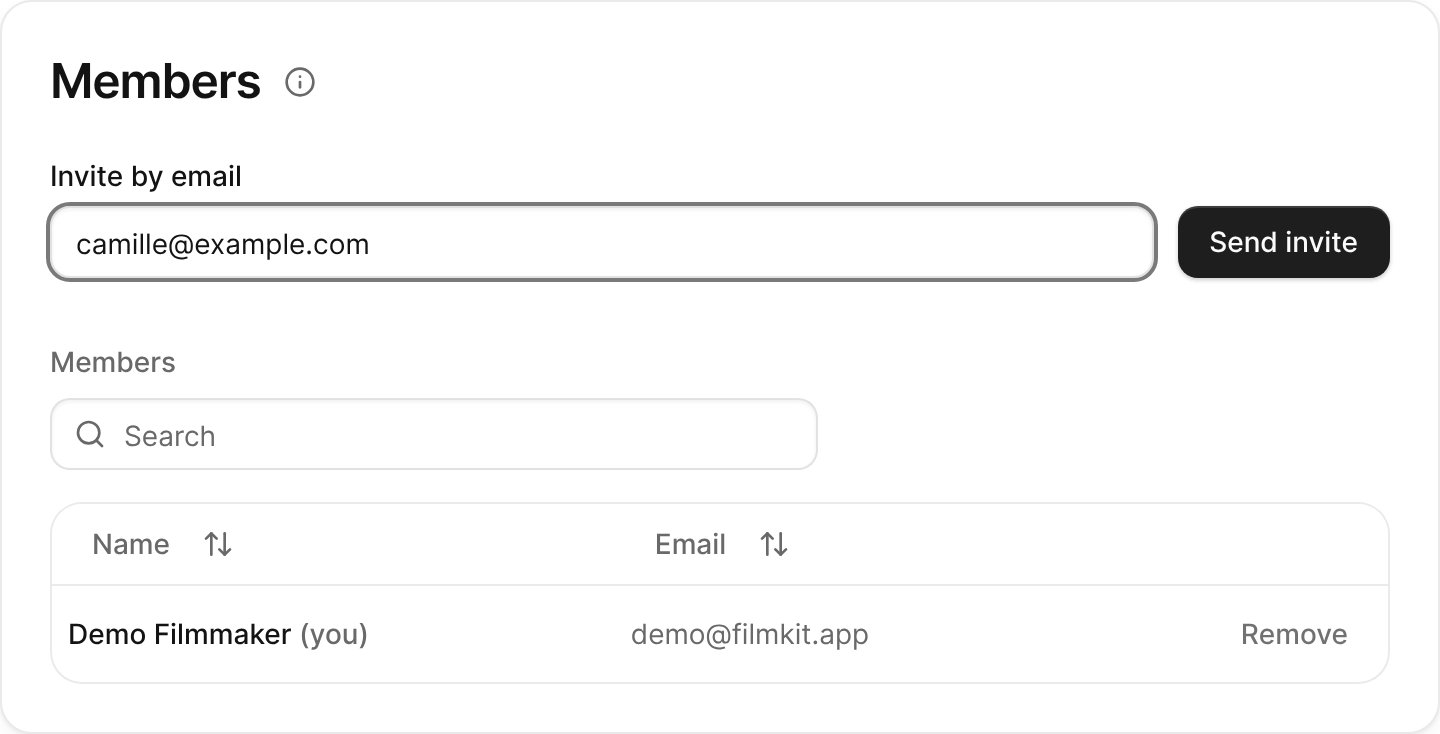
The Members card in Space Settings with an email address entered. - Click Send invite.
The invitation appears under Pending invites, with the date it expires. The person receives an email with a link to join the space.

Accept an invitation
- In the invitation email, click the link.
- If the sign-in page opens, sign in with your passkey, then click the link in the email again. See Sign in with a passkey.
- On the Accept invitation page, click Continue.
The space appears on your dashboard, and you can open its projects.
Revoke an invitation
If you invited the wrong address or the person no longer needs to join, revoke the invitation so the link stops working.
- In the space sidebar, click Space Settings.
- In the Members card, under Pending invites, click Revoke next to the invitation.
- In the Revoke invite? dialog, click Revoke.
You can send a new invitation later.
Remove a member
- In the space sidebar, click Space Settings.
- In the Members card, click Remove next to the person.
- In the Remove member? dialog, click Remove.
The person loses access to the space and all its projects right away. You can invite them again later.