Change project settings
You can rename a project, give it a logo, and choose the units and formats it uses for weather, call times, and exports.
To open a project's settings, click Settings at the bottom of the project sidebar.

Rename a project
- In a project, click Settings at the bottom of the sidebar.
- In the General card, enter a new name in the Project Name field.
- Click Save Changes.
Add or remove the project logo
- In a project, click Settings at the bottom of the sidebar.
- In the General card, do one of the following:
- Add or replace the logo: Click the file field under Project Logo, then choose a square JPEG, PNG, or WebP image. The logo is uploaded as soon as you choose it.
- Remove the logo: Click Remove Logo, then click Remove Logo again to confirm.
Documents you've already published keep the logo they were published with.
Change units and formats
- In a project, click Settings at the bottom of the sidebar.
- Under Units & Formats, choose any of the following:
- Region: The country the production is based in.
- Temperature Unit: Celsius (°C) or Fahrenheit (°F), used for weather on shooting days and call sheets.
- Time Format: 24-hour (14:30) or 12-hour (2:30 PM).
- Time Zone: The time zone in which call sheet and schedule times appear. If you leave it unset, times appear in UTC.
- Click Save Changes.
Delete a project
Deleting a project deletes its screenplays and everything else in it for everyone in the space.
- In a project, click Settings at the bottom of the sidebar.
- In the Danger Zone card, click Delete Project.
- In the Delete Project dialog, enter the project title.
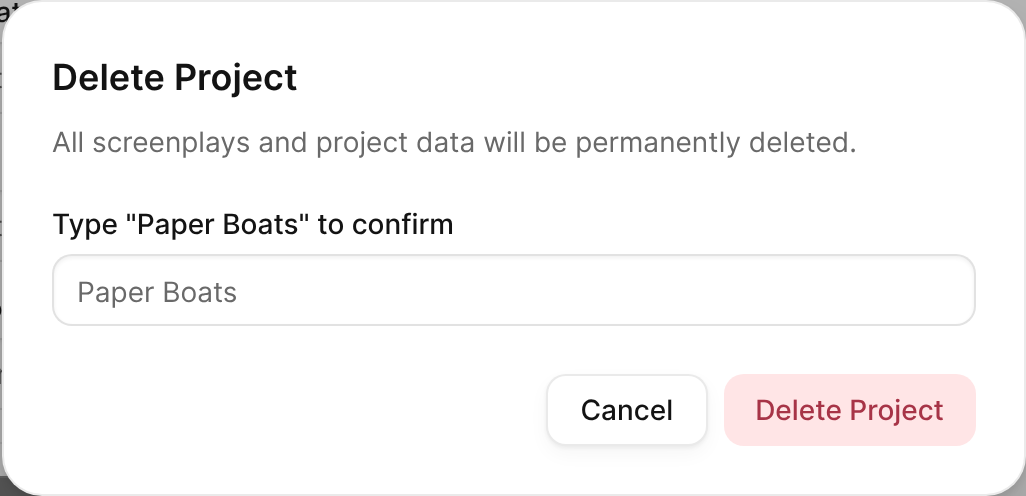
The Delete Project dialog, which asks you to type the project title and hold the button. - Click and hold Delete Project until the project is deleted.
