Change space settings
You can change the name, logo, and company contact details of a space. FilmKit uses these details on the call sheets and other documents you publish.
To open a space's settings, open the space, then click Space Settings in the sidebar.
Change the space name and contact details
- In the space sidebar, click Space Settings.
- In the Profile card, do any of the following:
- Change the name: Enter a new name in the Space Name field.
- Add or change the company contact details: Enter the Email, Phone, Street, ZIP / Postcode, City, and Country.
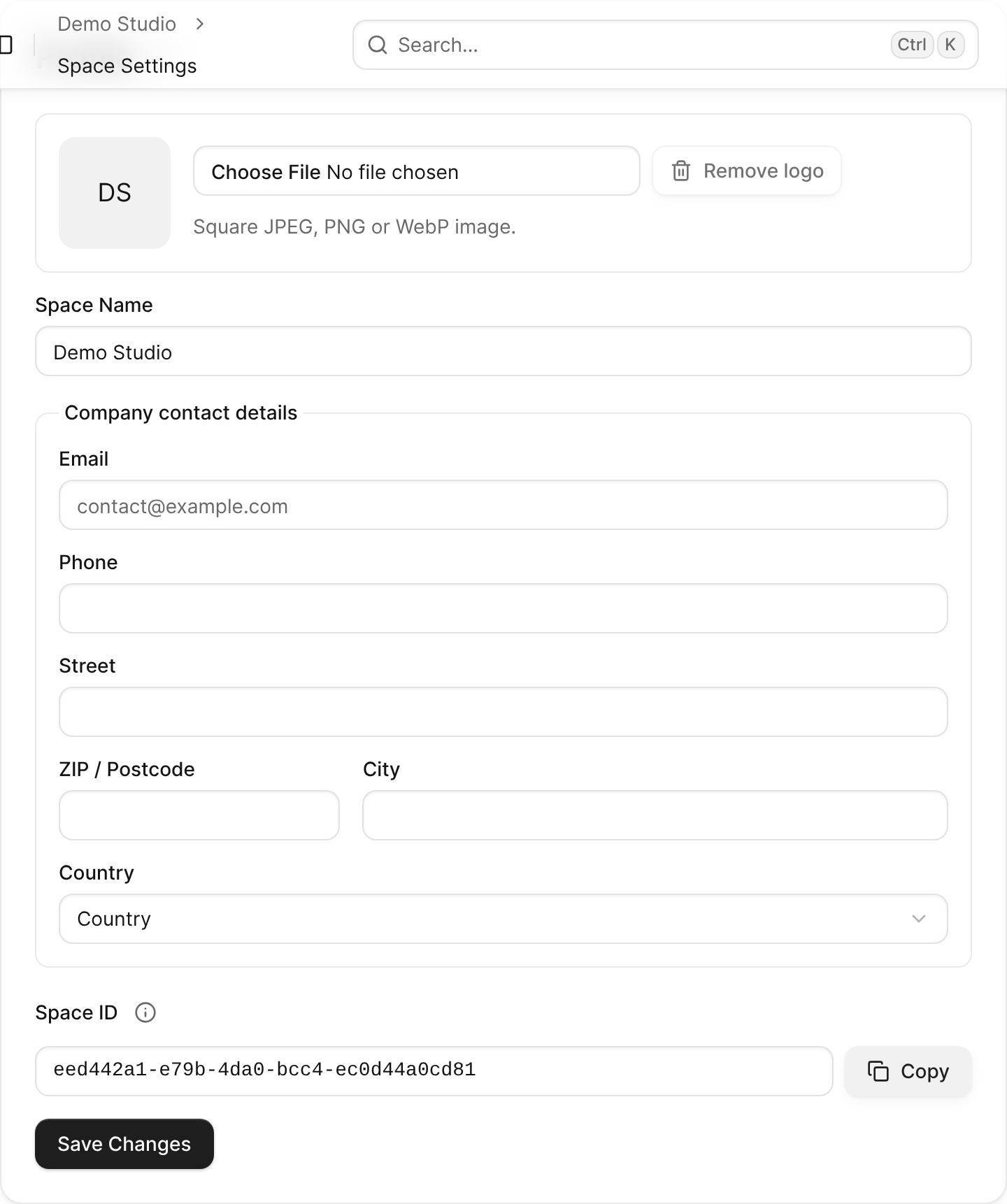
The Profile card in Space Settings with the space name and company contact details. - Click Save Changes.

Add or remove the space logo
- In the space sidebar, click Space Settings.
- In the Profile card, do one of the following:
- Add or replace the logo: Click the file field next to the logo, then choose a JPEG, PNG, or WebP image. The logo is uploaded as soon as you choose it.
- Remove the logo: Click Remove logo, then click Remove logo again to confirm.
The logo appears on the space profile and on documents you publish from then on.
Copy the Space ID
A profile owner, such as an actor, needs your Space ID to invite your space to manage their directory profile.
- In the space sidebar, click Space Settings.
- In the Profile card, next to Space ID, click Copy.
See Manage profiles for others.
Open the space's managed profiles
Managed profiles are directory profiles the space owns, such as an agency's roster of actors. A profile can also invite your space to manage it; when you accept, every member of the space gets the invited role on that profile.
- In the space sidebar, click Space Settings.
- In the Managed profiles card, click Open managed profiles.
See Manage profiles for others.
Manage members
The Members card lists the people who can edit the space and its projects, and the invitations that haven't been accepted yet. See Invite people to a space.
Delete a space
Deleting a space permanently deletes its projects, contacts, publications, uploaded files, and members.
- In the space sidebar, click Space Settings.
- In the Danger Zone card, click Delete Space.
- In the Delete this space? dialog, enter the space name.
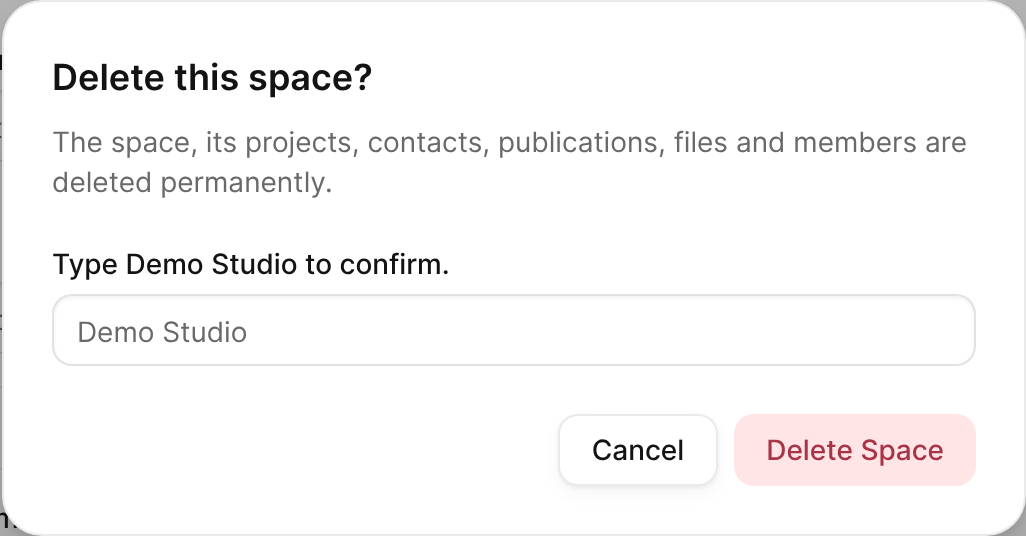
The Delete this space? dialog, which asks you to type the space name and hold the button. - Click and hold Delete Space until the space is deleted.
