Manage profiles for others
A space can own and manage directory profiles. A talent agency can keep its actors' profiles in its space, and a production company can manage its own company profile together. Every member of a managing space can edit the profile.

Create a managed profile
- In the sidebar, click a space, then click Managed Profiles.
- Click .
- Choose a Type, then enter a Display name.
- If the profile is for an actor, you can enter the actor's email in the Actor email (optional, invites them as a view-only member) field.
The actor gets view-only access to their profile, so they can see it but not change it.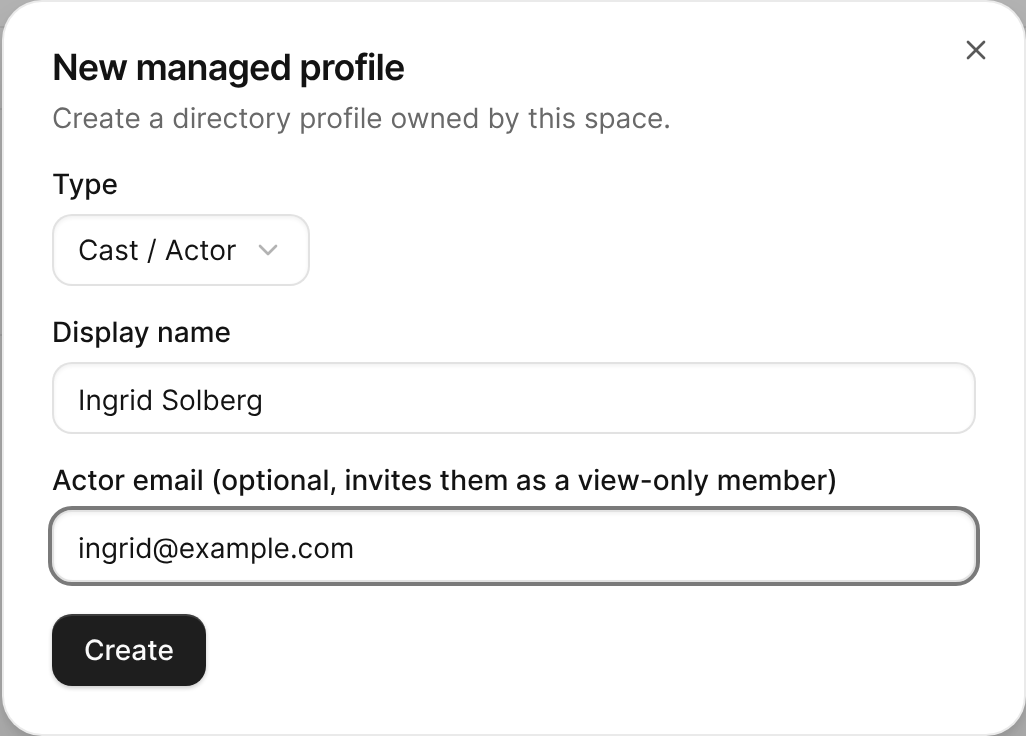
The New managed profile dialog for an actor, with a display name and the actor's email entered. - Click Create.
The profile opens in the profile editor. See Create and edit a profile.

Assign an actor to an agency
If your space manages a Talent agency profile, you can record which actors it represents. The agency then lists the actor on its public roster, and the actor's profile shows Represented by.
- On the space's Managed Profiles page, find the actor's profile.
- In the Agency column, choose the agency.
To change or remove the agency, choose another agency or None, then confirm with Update agency or Remove agency.
Let a space manage your profile
You can give a space access to a profile you own, for example to let your agency update your profile.
- In the sidebar, click My profiles, then click the profile.
- Go to the Managing spaces section, then do one of the following:
- Add one of your own spaces: Under Add your space, choose a Space and a Role, then click Grant access. The space can manage the profile right away.
- Invite another space: Enter the space's Space ID and choose a Role. When FilmKit shows the space's name, click Send invite. A member of that space has to accept the invitation.
Members can copy their space's ID from Space Settings. To remove a space later, click the Remove button next to it in the Managing spaces section.
Accept an invitation to manage a profile
When someone invites your space to manage their profile, the invitation appears on the space's Managed Profiles page.
- In the sidebar, click the space, then click Managed Profiles.
- Under Profile management invites, click Accept or Decline.
If you accept, the profile appears in the list of managed profiles, and every member of the space gets the invited role on it.
To stop managing a profile, click Remove from space in its row. The profile itself isn't deleted.