Create and edit a profile
You can create a profile to appear in the FilmKit directory and to apply for casting calls and crew jobs. You can have several profiles, each of one type.
Create a profile
- In the sidebar, click My profiles.
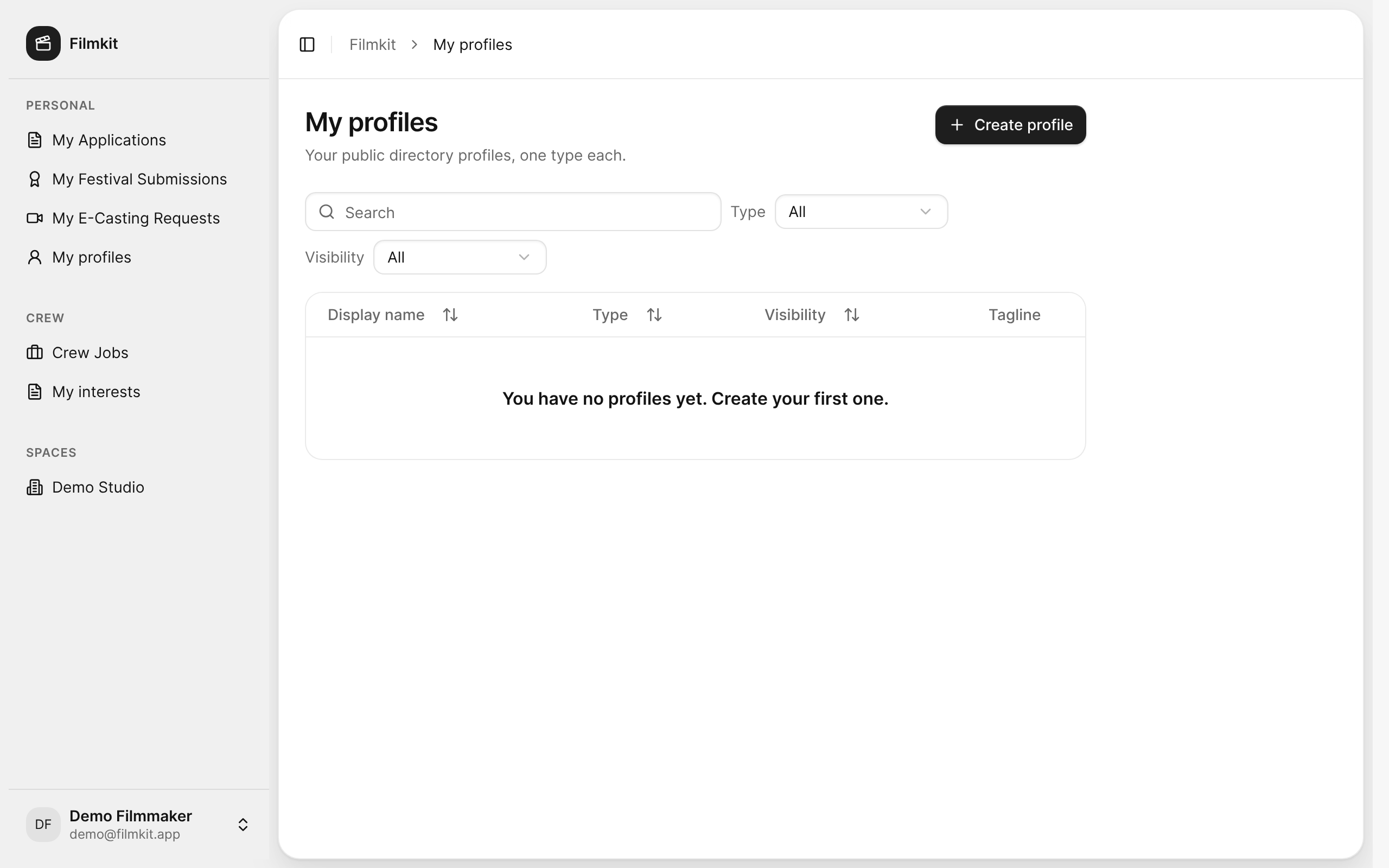
The My profiles page with the Create profile button. - Click .
- In the Create profile dialog, choose a Type, then enter a Display name.
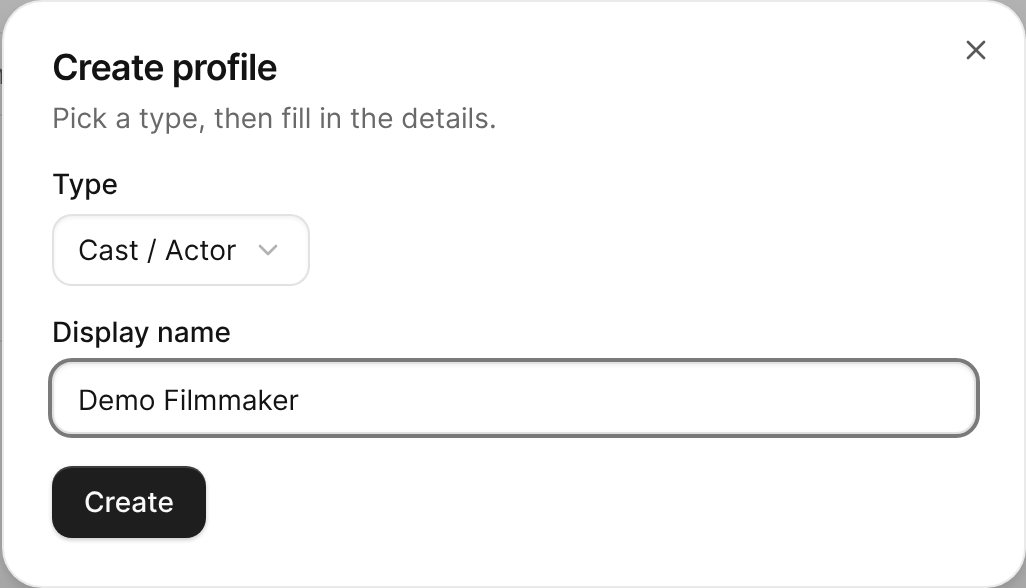
The Create profile dialog with the Cast / Actor type selected and a display name entered. - Click Create.
The profile opens in the profile editor. It starts as hidden, so nobody else can see it until you change its visibility.


Edit a profile's details
- In the sidebar, click My profiles, then click the profile.
- In the Profile details section, change any of the following:
- Visibility: Who can find the profile. Choose Public — searchable in the directory, Unlisted — reachable by direct link only, or Hidden — not published.
- Profile image (or Logo for organizations): Click Upload image to add a JPEG, PNG, or WebP file.
- Display name, Tagline, and Description: How the profile introduces itself.
- City, Country, Website, Contact email, and Contact phone: Where you are and how to reach you.
- Skills and Languages (Cast / Actor and Crew only): Enter several values separated by commas.
- Fill in the section for the profile's type:
- Acting: Union status, Age from and Age to (your playing age), Height (cm), and physical attributes such as Eye color, Hair color, and Build. Height and physical attributes are optional and self-declared; casting directors can filter the directory by them.
- Crew: The Departments and Roles you work in, your Availability, and your Rate (currency, minimum, maximum, period, and band).
- Company, Film school, Festival, or Talent agency: Details such as Founded, Size, Accreditation, Categories, or Territories.
- Click Save profile.
Invite people to help manage a profile
You can let other people edit a profile with you, for example an assistant or a colleague at your company.
- Open the profile, then go to the Team members section.
- In the Invite by email field, enter the person's email address.
- Choose a Role, then click Invite.
The invitation appears under Pending invites. The person can accept it until it expires. To cancel it and turn off its link, click Revoke.
To give a whole space access instead, use the Managing spaces section. See Manage profiles for others.
Delete a profile
- Open the profile, then go to the Danger Zone section.
- Click Delete profile.
- Enter the profile's name to confirm, then click Delete profile.