Find and apply for roles
If you're an actor, you can browse every published casting call on FilmKit, apply with your cast profile, and keep track of your applications and self-tape requests in one place.
To apply, you need a FilmKit account and a cast profile. See Create and edit a profile.
Browse open casting calls
- At the top of any public FilmKit page, click Open calls.
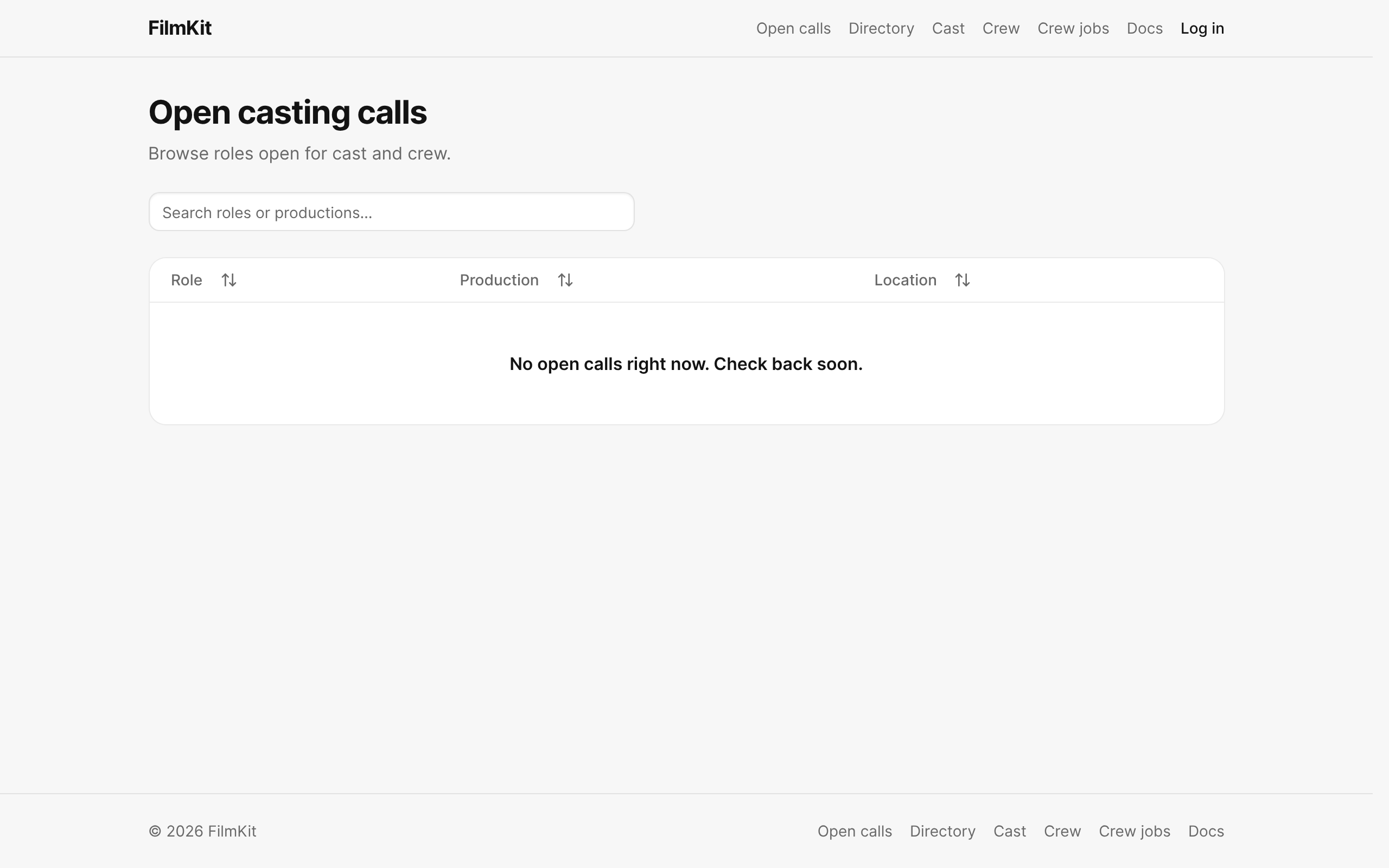
The public Open casting calls page listing roles, productions, and locations. - To narrow the list, enter a role or production in the search field.
Each row shows the role, the production, and the location. To start over, click Clear filters. - Click a call to open it.
The call page shows the character, who posted it, and About this role.

Apply for a role
- On the call page, click Apply.
If you aren't signed in, click Log in to apply first. - In the dialog, choose the cast profile to apply with from the Apply as menu.
If you don't have a cast profile yet, click Create one. - Check your First name, Last name, and Email, and enter a Message for the casting team.
- To share a showreel, choose it from the Share a showreel menu.
A private showreel is shared only with this production's reviewers. See Add showreels. - Click Submit application.
Track or withdraw your applications
- Go to your dashboard, then click My Applications in the sidebar.
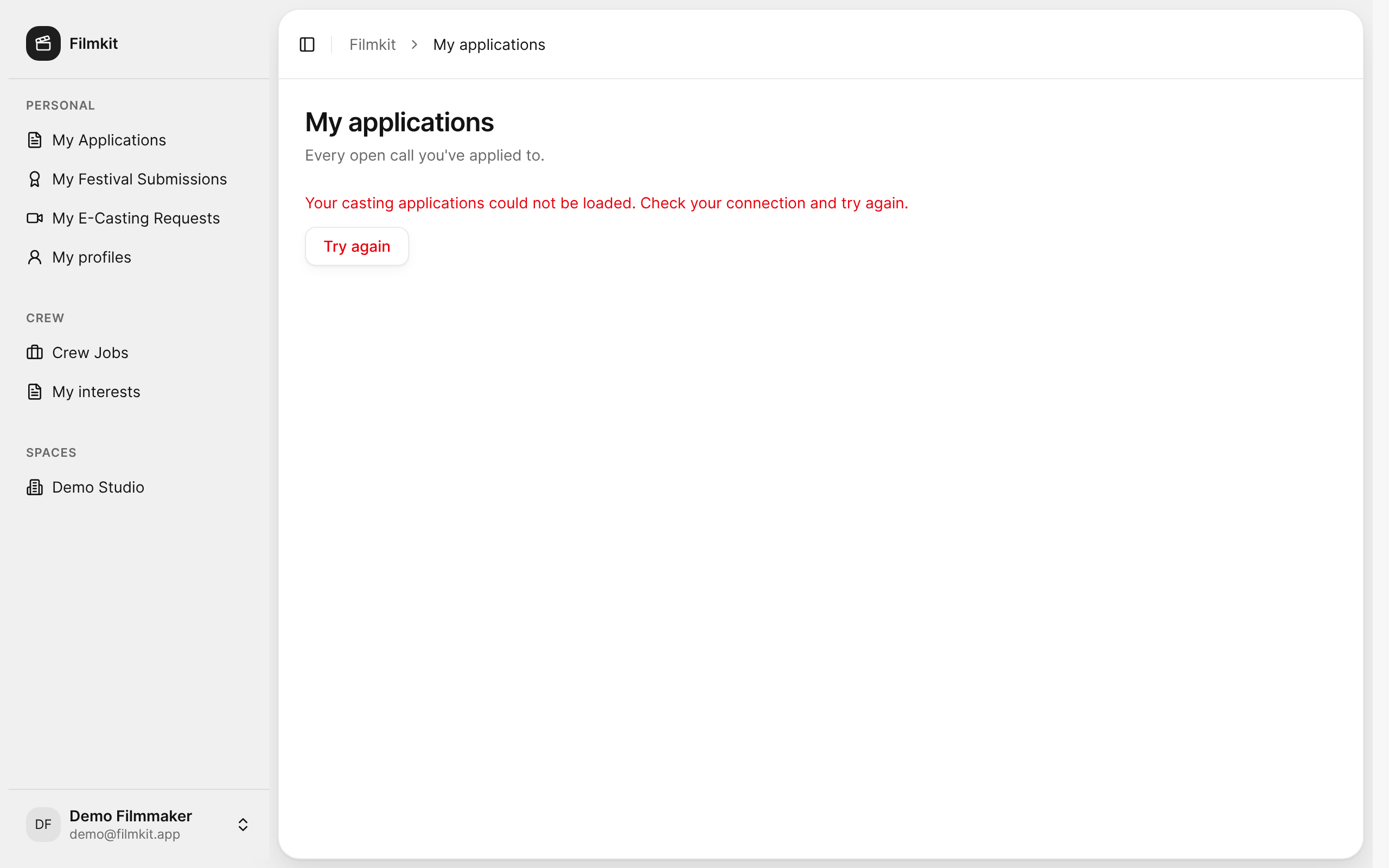
The My applications page listing the calls you applied to.
The list shows each call you applied to, its status, the date you applied, and any showreel you shared. - To withdraw an application, click Withdraw in its row, then confirm.

When you withdraw, any private showreel you shared for that call is no longer available to the casting team. You can apply again while the call stays open.
Record a self-tape
When a casting team asks you for a self-tape, you get an email with a private link. You can use that link, or find the request in FilmKit.
- Go to your dashboard, then click My E-Casting Requests in the sidebar.
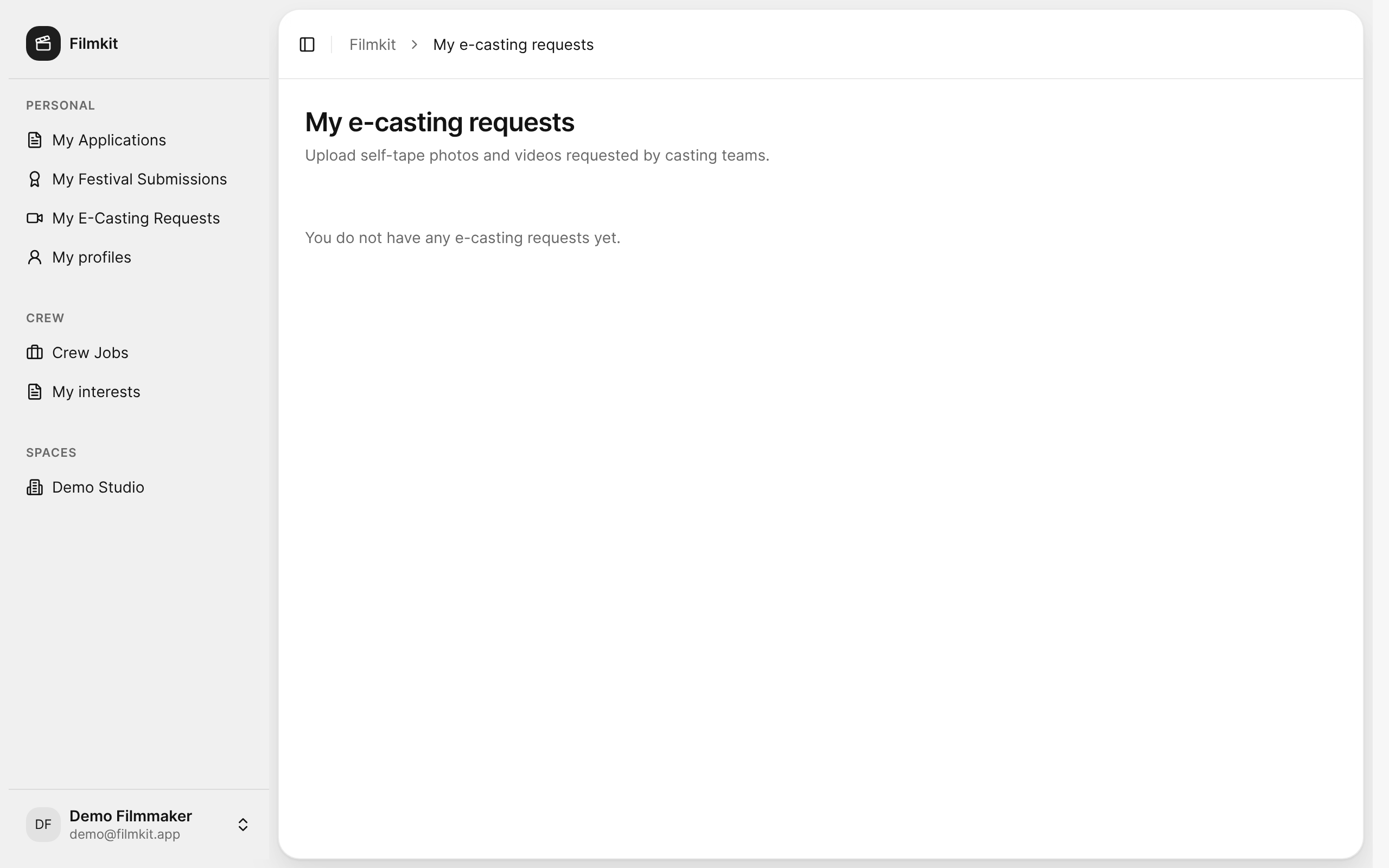
The My e-casting requests page for uploading requested self-tapes. - Read the request's instructions and due date. If sides are attached, click Download sides to get the scenes.
- Answer the request's questions. Fields marked with an asterisk (*) are required.
- For each photo, click Upload photo, or click Capture photo to use your camera.
- For each video, click Upload video, or click Record video to record with your camera and microphone.
When you capture with your camera, you can click Retake before you click Upload capture. - When every required field is complete, click Mark submitted.
The casting team can now review your self-tape.
