Sign in with a passkey
You sign in to FilmKit with a passkey instead of a password. A passkey is saved on your device or in your password manager, and you confirm it with your fingerprint, your face, or your device PIN.
To sign in, you need a FilmKit account with at least one passkey, and a browser that supports passkeys. All current versions of the major browsers do.
Sign in
- Go to the FilmKit sign-in page.
- Click Sign in with passkey.
- Choose your passkey, then confirm with your fingerprint, face, or device PIN.
Your dashboard opens. If you followed a link to a specific page, that page opens instead.
Some browsers offer your saved passkey as soon as the sign-in page opens, so you can sign in without clicking the button.
Add a passkey for another device
Add a passkey on each device you use, or use a passkey that your password manager syncs between devices.
- On the device you want to add, sign in to FilmKit.
- At the bottom of the sidebar, click your name, then choose Account Settings.
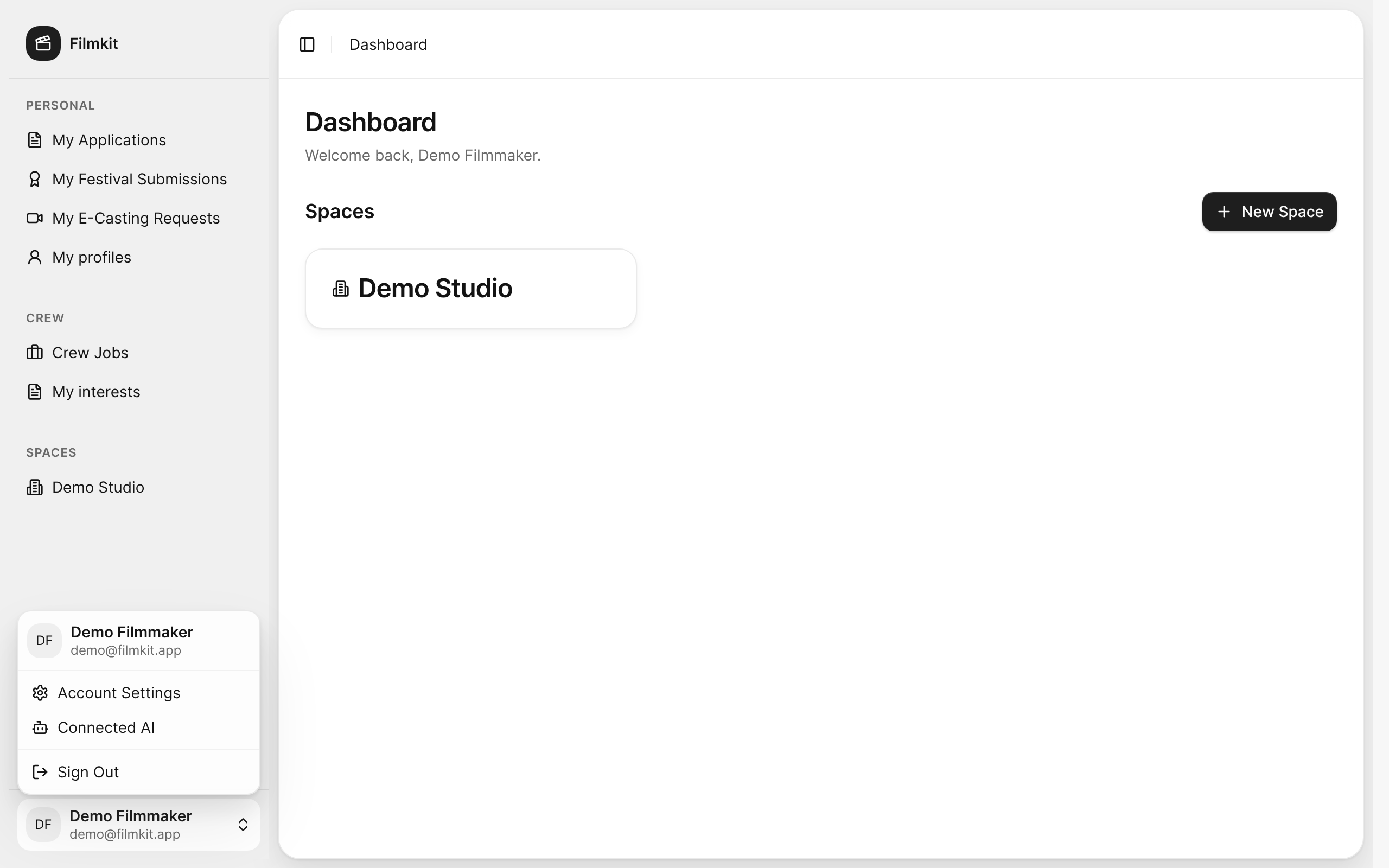
The account menu at the bottom of the sidebar, with Account Settings, Connected AI, and Sign Out. - In the Passkeys card, click Add Passkey, then follow the instructions from your browser.
The new passkey appears in the list. You can rename or delete a passkey from the list, but you can't delete your last one.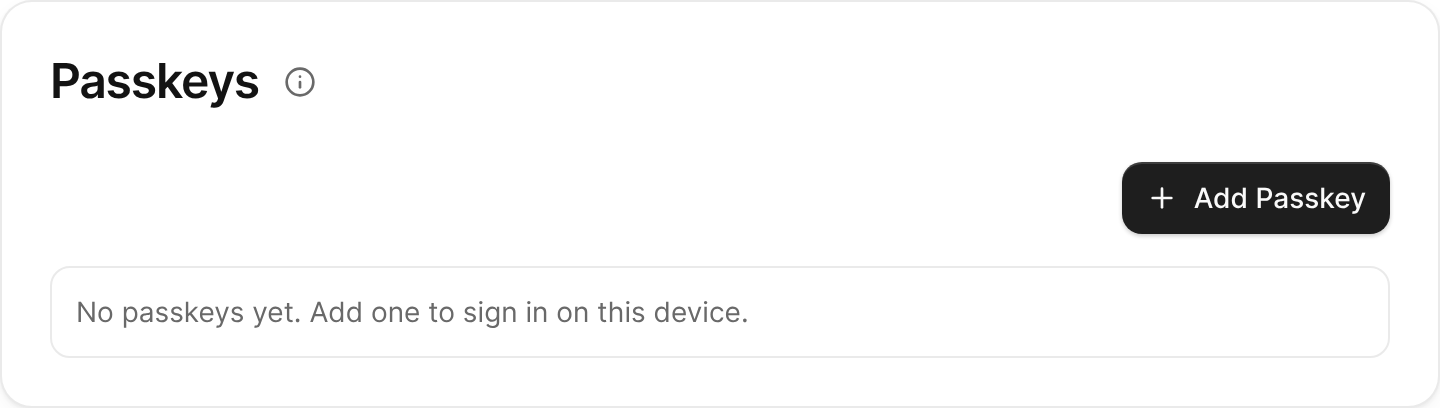
The Passkeys card in Account Settings with the Add Passkey button.


For more about the account settings, see Change account settings.
Sign out
- At the bottom of the sidebar, click your name, then choose Sign Out.
The sign-in page opens.