Create a space and a project
You can create a space for your production company, collective, or team, and then create a project in it for each film, series, or short you make. The space holds your team and address book; the project holds the screenplay and everything planned from it.
Create a space
- On your dashboard, click .
Your dashboard opens when you sign in. To go back to it from a space, click the space name at the top of the sidebar, then choose Personal Dashboard. See FilmKit interface. - In the New Space dialog, enter a name in the Space Name field.
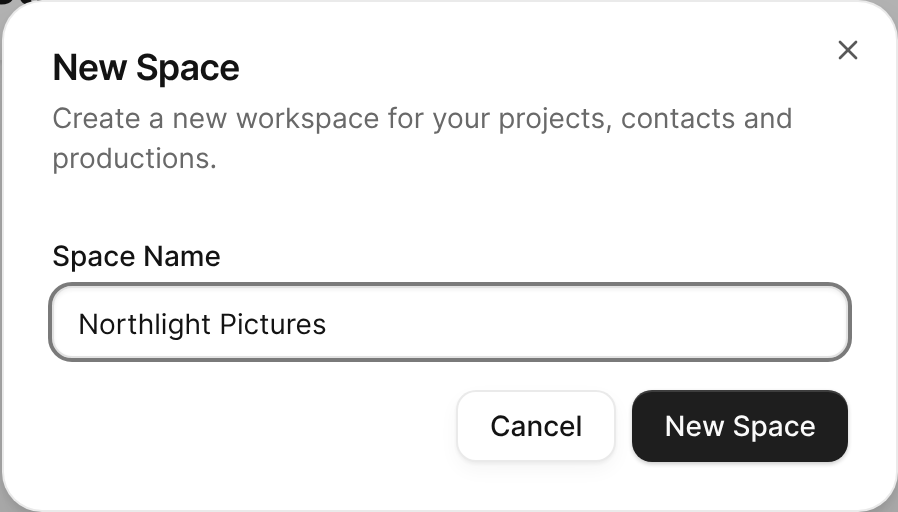
The New Space dialog with a space name entered. - Click New Space.
The space dashboard opens. You're the space's first member, and you can change its name, logo, and contact details later. See Change space settings.

Create a project
- On your dashboard, click the space you want the project in.
- On the space dashboard, click .
- In the New Project dialog, enter a name for the production in the Title field.
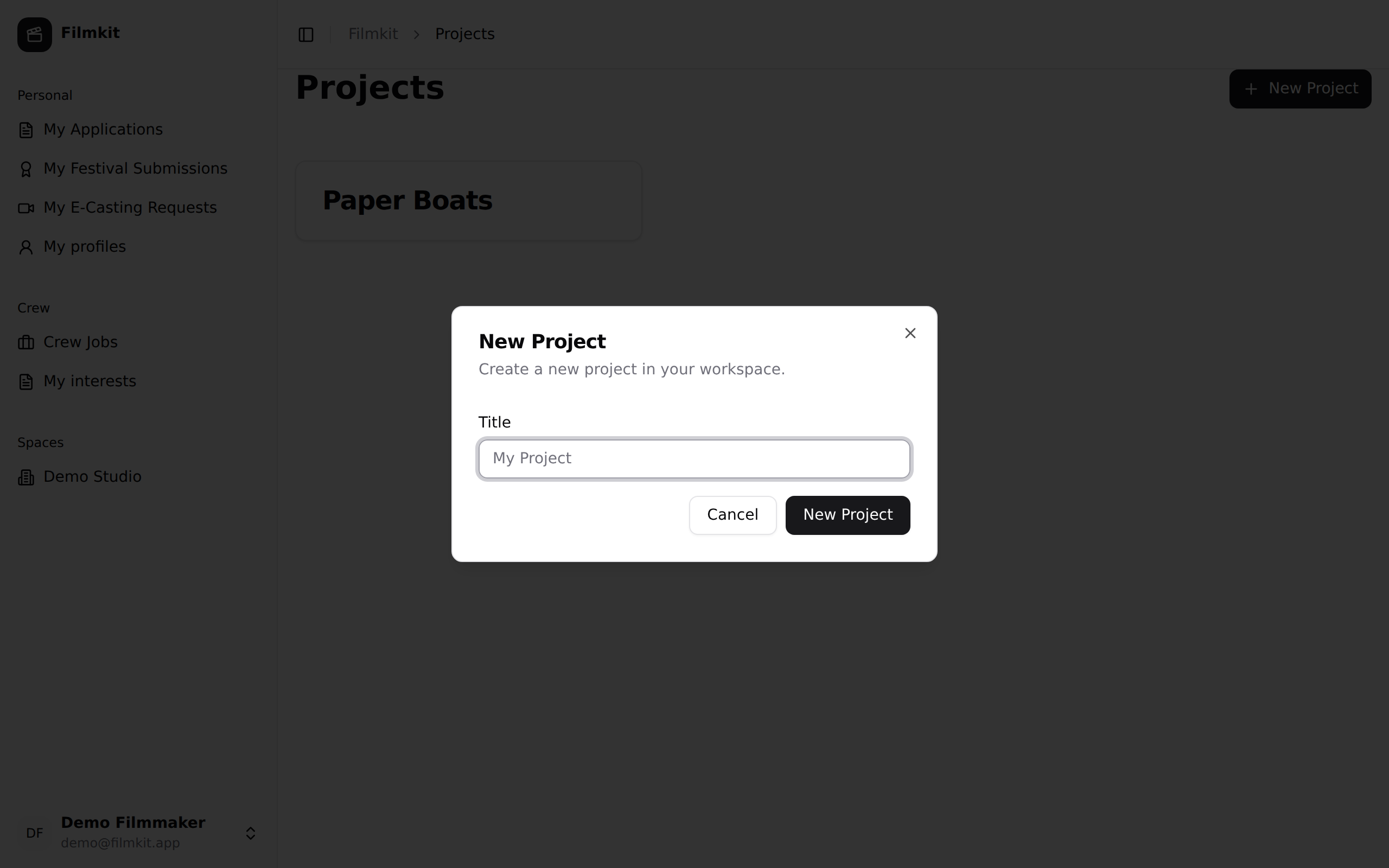
The New Project dialog in the Demo Studio space with a title entered. - Click New Project.
The project's overview opens, with a card for each area of the project.

To start writing, see Create or import a screenplay.
Open a project
Do one of the following:
- From a space: On your dashboard, click the space, then click the project.
- From any project: In the sidebar, click All Projects, then click the project you want.
The Projects page lists every project you can open across all your spaces. A project marked Read-only is one that someone shared with you to view. See Roles and access.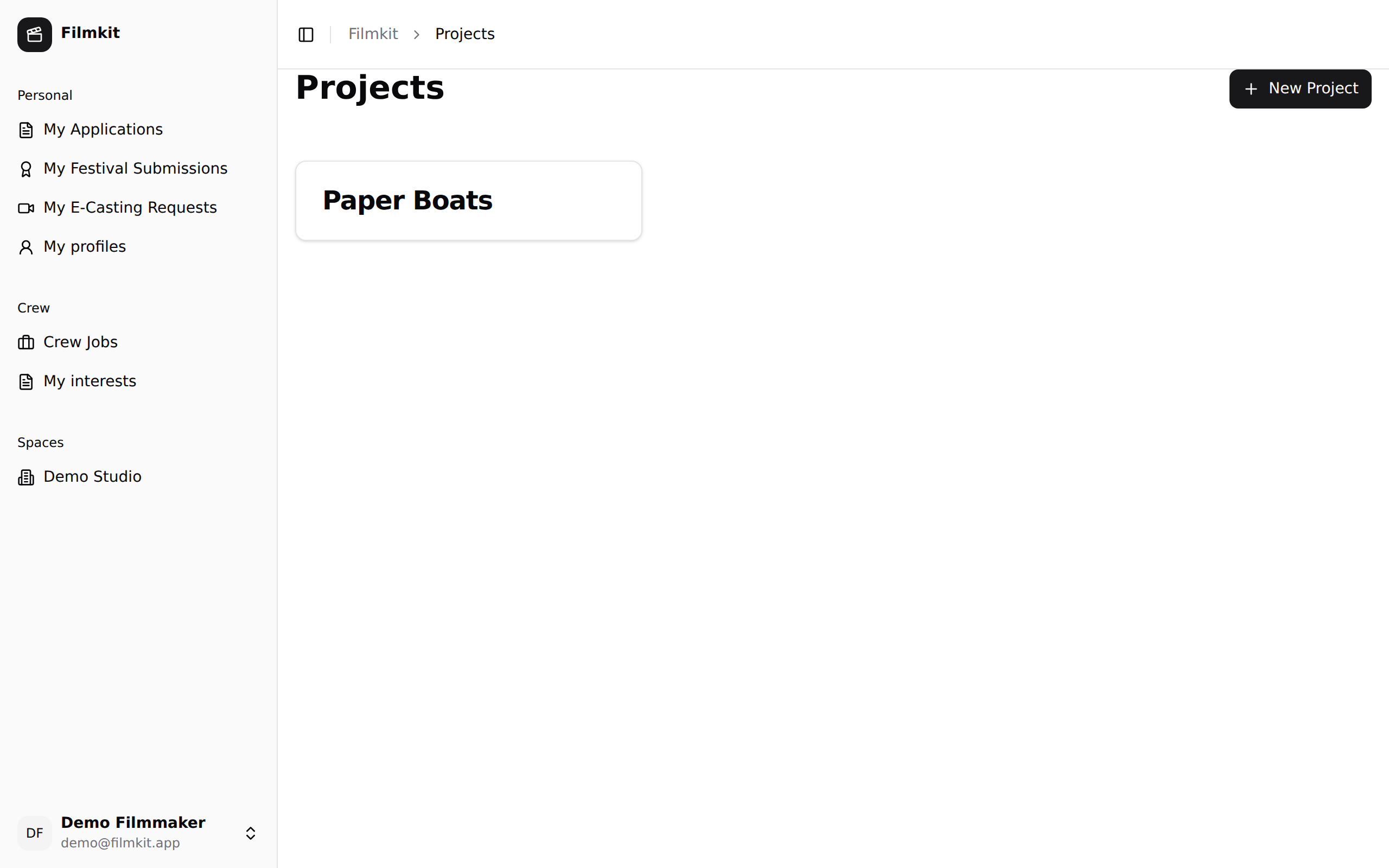
The Projects page listing every project you can open, with its space.
