Set someone's role on a project
On a project's People & access page, you see everyone who can open the project, the role they have there, and where their access comes from. Below them, you see everyone on the roster, with or without a FilmKit account, and the links that open part of the project without an account. You can give a person a different role on this project only, give a roster contact access, or invite someone new with a role.
To change roles on a project, you need to be able to manage it, as owners, admins, and Collaborators can. You can give only roles that don't go beyond your own access: a Collaborator, who has no budget access, can't make someone a Producer.
See who has access
- Open the project, then click People & access in the sidebar.
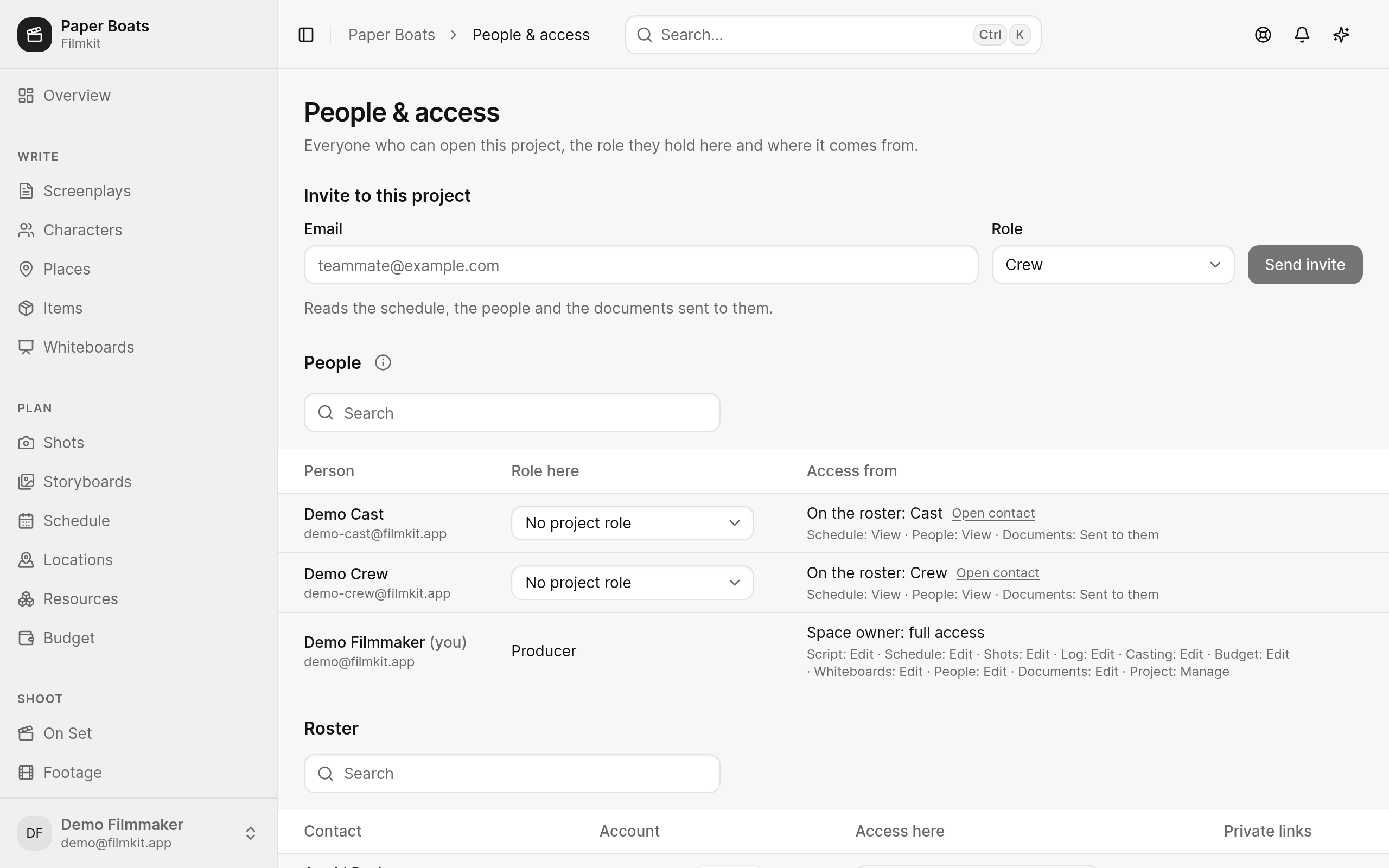
The People & access page of a project, listing each person's role and where their access comes from.
Each person's Access from column says where their access comes from, such as "Space member: Collaborator", "Project role: Finance", or "On the roster: Logger", followed by what they can view and edit. - Scroll down to see the rest:
- Pending invites: Every invite into the project that hasn't been accepted yet: a role on this project, an account for a roster contact, a shared screenplay or whiteboard, and, if you're an owner or admin, an invite to join the space.
- Roster: Everyone on the project's roster. The Account column shows whether a FilmKit account is linked, an invite is pending, or the contact has no account. Private links shows a working self-service link or calendar feed.
- Links: Share links for a screenplay or whiteboard that still work, which anyone holding them can open, and the number of publication links sent to recipients. Click Manage to change or revoke them where they were made.

Change someone's role
- Open the project, then click People & access in the sidebar.
- In the Role here column next to the person, choose a role.
The change applies right away. A member keeps the role on this project only; in other projects they keep the default role for members.
Owners and admins of the space have no role menu: they always have full access, and a project role can't give them less. You can't change your own role.
Give a roster contact access
Someone on the roster gets their access from their assignment, so it ends when you remove them from the roster. To give access, you need to be a member of the space.
- Open the project, then click People & access in the sidebar.
- Under Roster, find the contact.
- Do one of the following:
- The contact has an account: In the Access here column, choose a role.
- The contact has no account: Click Invite, enter the email address if it is missing, choose a role from the Role menu, then click Send invite.
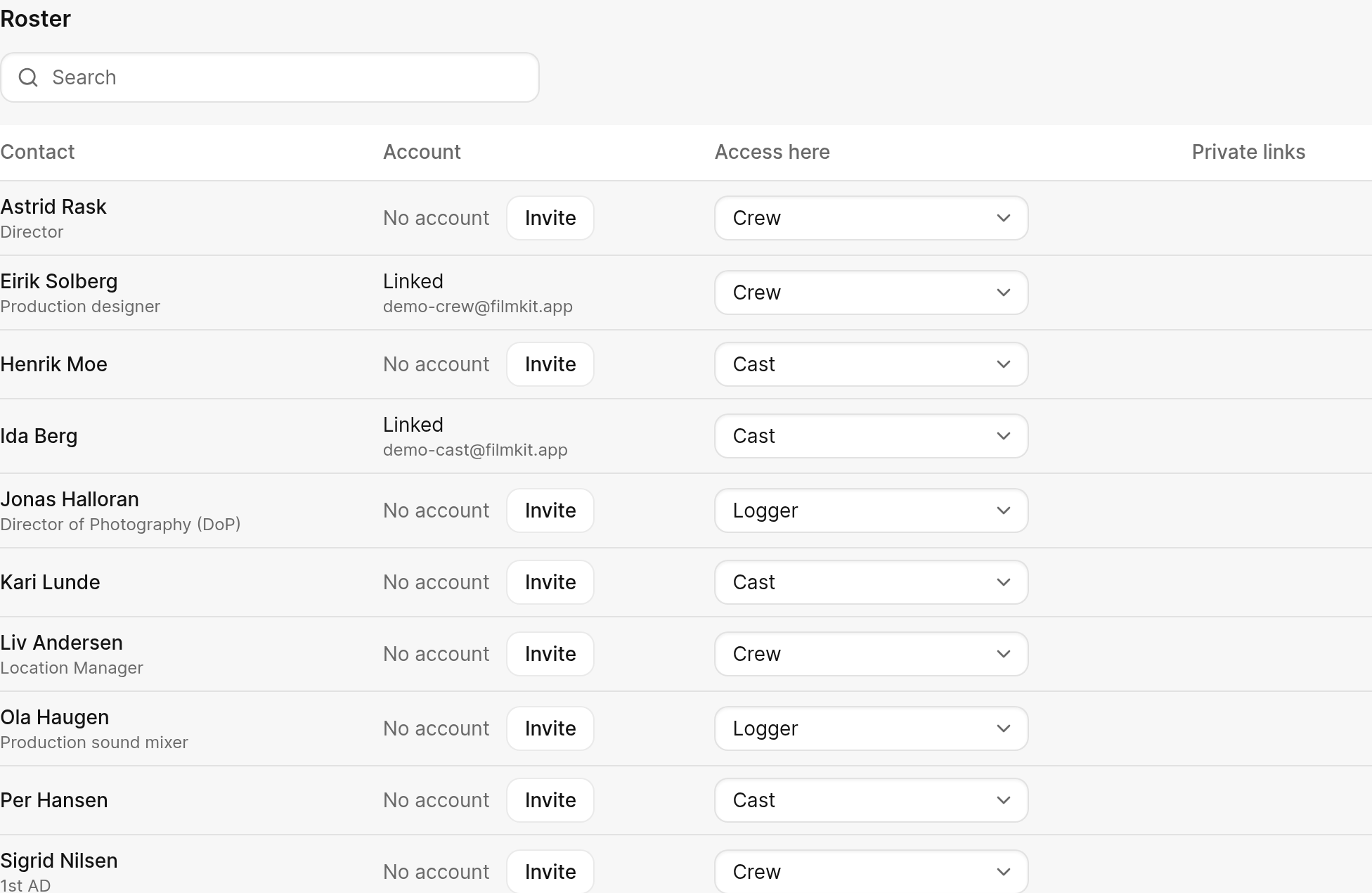
The Roster section of People & access, with each contact's account, access on the project and private links.
When the person accepts the invite, the Account column shows Linked and they can open the project with that role. They also get access to every other project they're on, with the role set there.

If you click Invite again, the new invite replaces the earlier one, and the link in the earlier email stops working.
To give a contact no access to the project, choose No account access. They still get documents sent to them by link.
Invite someone with a role
- Open the project, then click People & access in the sidebar.
- Under Invite to this project, enter the person's email address.
- Choose a role from the Role menu.
The line under the form says what the role can do. - Click Send invite.
The invite appears under Pending invites until the person accepts it. They get access to this project only, not to the rest of the space.
If the email address belongs to a contact on the roster with no account, FilmKit invites that contact instead, and the Roster shows them as invited. See Give a roster contact access.
Cancel an invite
- Open the project, then click People & access in the sidebar.
- Under Pending invites, click Cancel invite next to the invite.
The link in the invite email stops working right away.
You can cancel an invite to join the space only if you're an owner or admin, and an invite for a roster contact only if you're a member of the space.
Remove a project role
- Open the project, then click People & access in the sidebar.
- In the Role here column next to the person, choose Default for members (for a member) or No project role (for someone outside the space).
- In the Remove this role? dialog, click Remove role.
A member goes back to the default role for members. Someone outside the space loses the access the role gave them; if their contact is on the roster, they keep the access their assignment gives.