Change a member's space role
Each member of a space is an owner, an admin, or a member. Owners and admins have full access to every project; members work with the default role for members. See Roles and access.
Only an owner can change who is an owner or an admin. Admins can invite and remove members, but can't change ranks.
Change a rank
- In the space sidebar, click Space Settings.
- In the Members card, choose a rank in the Role column next to the person.
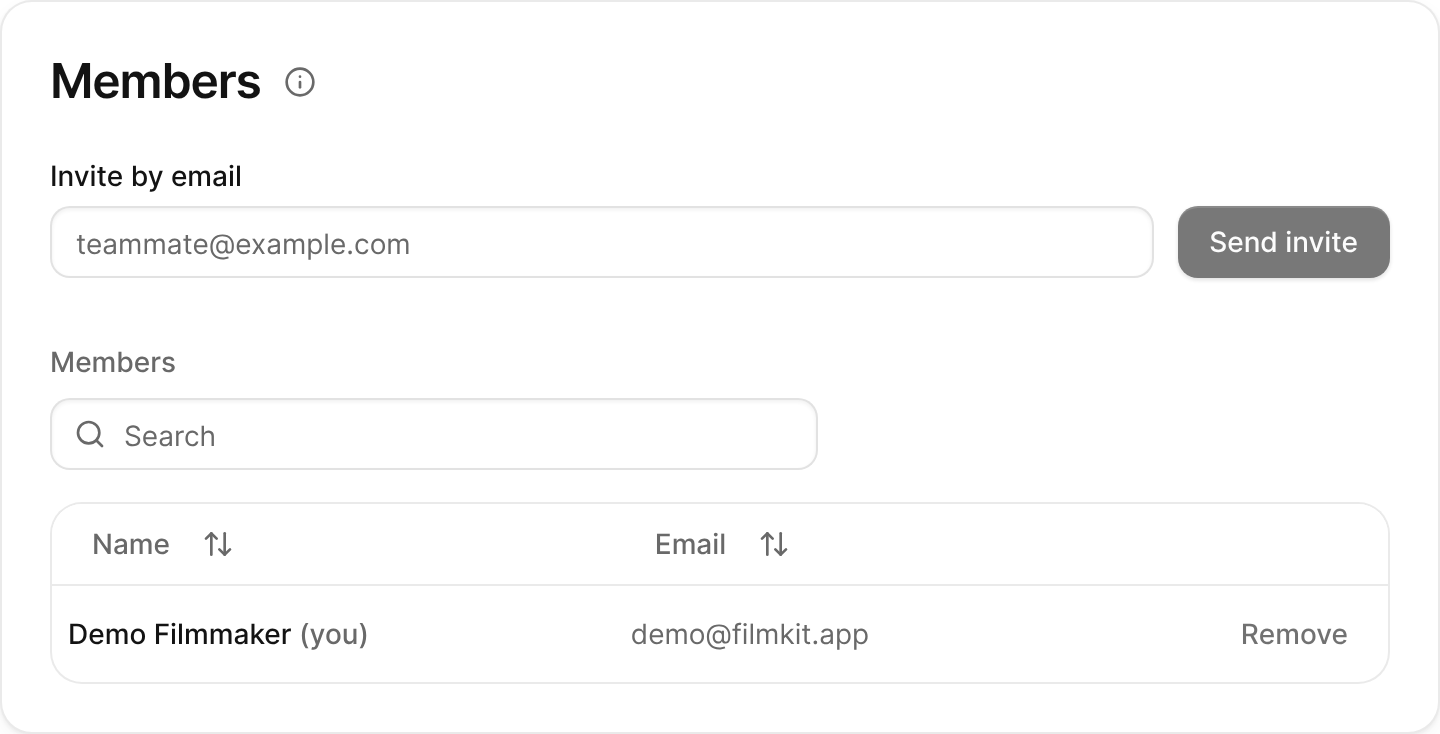
The Members list in Space Settings, showing each member's rank and the default project role for members.
The change applies right away. Someone who becomes a member keeps working in every project with the default role for members, or with the role a project gives them.

Invite someone with a rank
- In the space sidebar, click Space Settings.
- In the Members card, enter the person's email address in the Invite by email field.
- Choose Member, Admin, or Owner from the Join as menu, then click Send invite.
Only owners see the Join as menu; admins invite members. See Invite people to a space.