Sync timecode from a camera
You can sync a device to a camera's timecode, so the timecode in and out, marks, and the digital slate match what the camera records. You film the camera's timecode display, or type a timecode and tap when the camera reaches it.
Until you sync, a device stamps its own clock as the time of day. That matches a camera only if the camera runs on time-of-day timecode and was jammed to the same time.
Film the camera's timecode display
- In a project, click On Set in the sidebar.
- Click , then click next to the camera.
On the digital slate, click at the top of the board. - Choose the camera's Timecode rate, and select Drop-frame if the camera counts drop-frame timecode.
- Point the device at the camera's timecode display, a monitor that shows the timecode, or a timecode slate, and fit the timecode in the box.
The first time, the device asks to use its camera. When enough readings agree, the camera's timecode appears, running. - Check it against the camera's display. If the monitor shows the timecode late, click or to adjust it by a frame.
- Click Use this timecode.
The camera's button in View turns green. From now on, this device stamps that camera's timecode when you roll, cut, or mark, and on the slate.
Type a timecode and tap on it
Use this when the device has no camera, or the display is hard to read.
- In Sync timecode, click Type and tap.
- Enter a timecode a few seconds ahead of the camera's, ending in
:00.
FilmKit suggests one for you.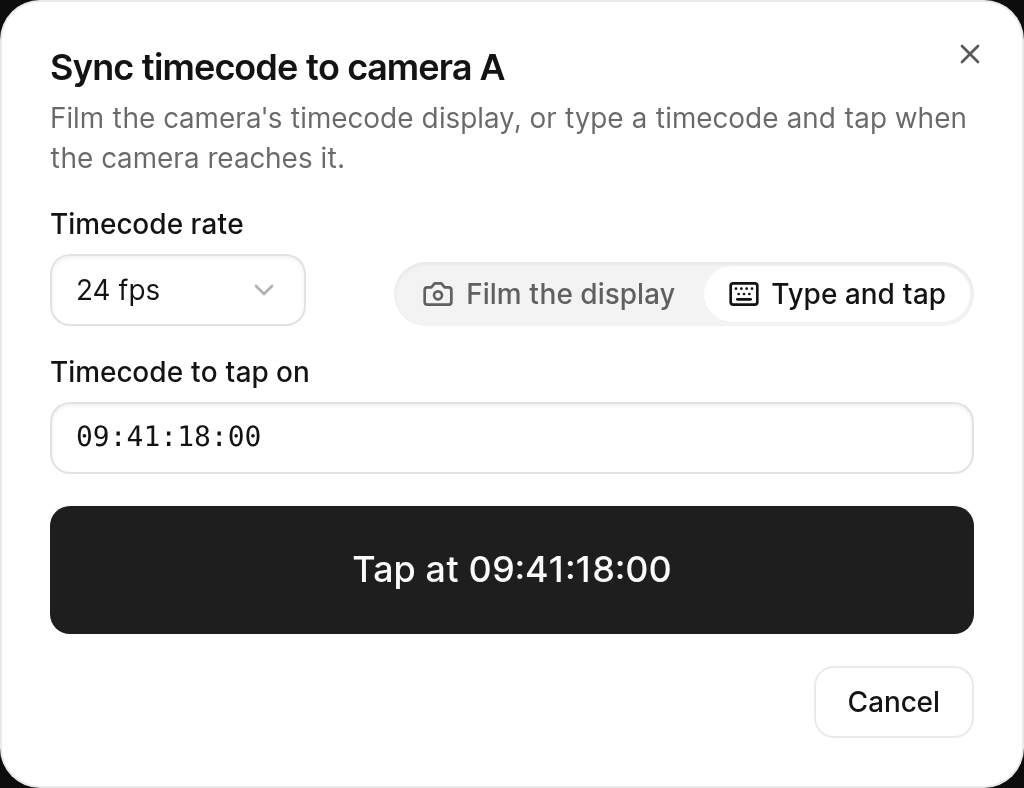
The Sync timecode dialog for camera A set to Type and tap, with a timecode a few seconds ahead and the button to tap when the camera reaches it. - Watch the camera's display, and click Tap at the moment it shows that timecode.
- Check the running timecode, adjust it by a frame if you need to, then click Use this timecode.

A tap is accurate to a few frames. Filming the display is more accurate.
Check or stop the sync
- To see whether a camera is synced on this device, click and hold the pointer over . The button is green when the camera is synced, and orange when the sync is more than 12 hours old.
- To check the timecode again, sync the camera again. FilmKit records how far the camera has drifted since the last sync.
- To go back to this device's clock, open Sync timecode for the camera and click Use the device clock.
Each sync is logged as a Timecode check in Setup > Camera events, so the camera report shows when the timecode was checked.