Control cameras remotely
You can roll and cut the cameras on your register, change their settings, and send them the slate from the Cameras tab of On Set. Each camera has a card with its last readings, its links, and the commands sent to it.
To control a camera, it must be on the camera register in Setup. See Set up logging.

How commands reach a camera
A camera is reached through a link: the device that paired with it, such as the 2nd AC's phone or a laptop on the set network. When you press a button on the Cameras tab, FilmKit queues the command for the camera, and the device that holds the link carries it out and reports back. So you can press REC from a laptop in the video village while a phone next to the camera talks to it.
A command that no device picks up within 30 seconds expires. It's never fired late.
Link a camera body
FilmKit links Blackmagic cameras, such as Pocket Cinema, URSA, Studio, and Cinema Camera bodies.
- In a project, click On Set in the sidebar, then click Cameras.
- On the camera's card, click Link a camera body.
- Do one of the following:
- Pair over Bluetooth: Click Pair via Bluetooth, then choose the camera in the browser's prompt. The first time, the camera shows a six-digit PIN; confirm it in the browser prompt. Bluetooth pairing works in Chrome or Edge on a laptop or an Android phone, and in the FilmKit desktop app.
- Connect over the network: Enter the camera's address from Blackmagic Camera Setup (for example,
192.168.1.20) in the Camera address field, then click Connect over the network. This device must be on the same network as the camera.
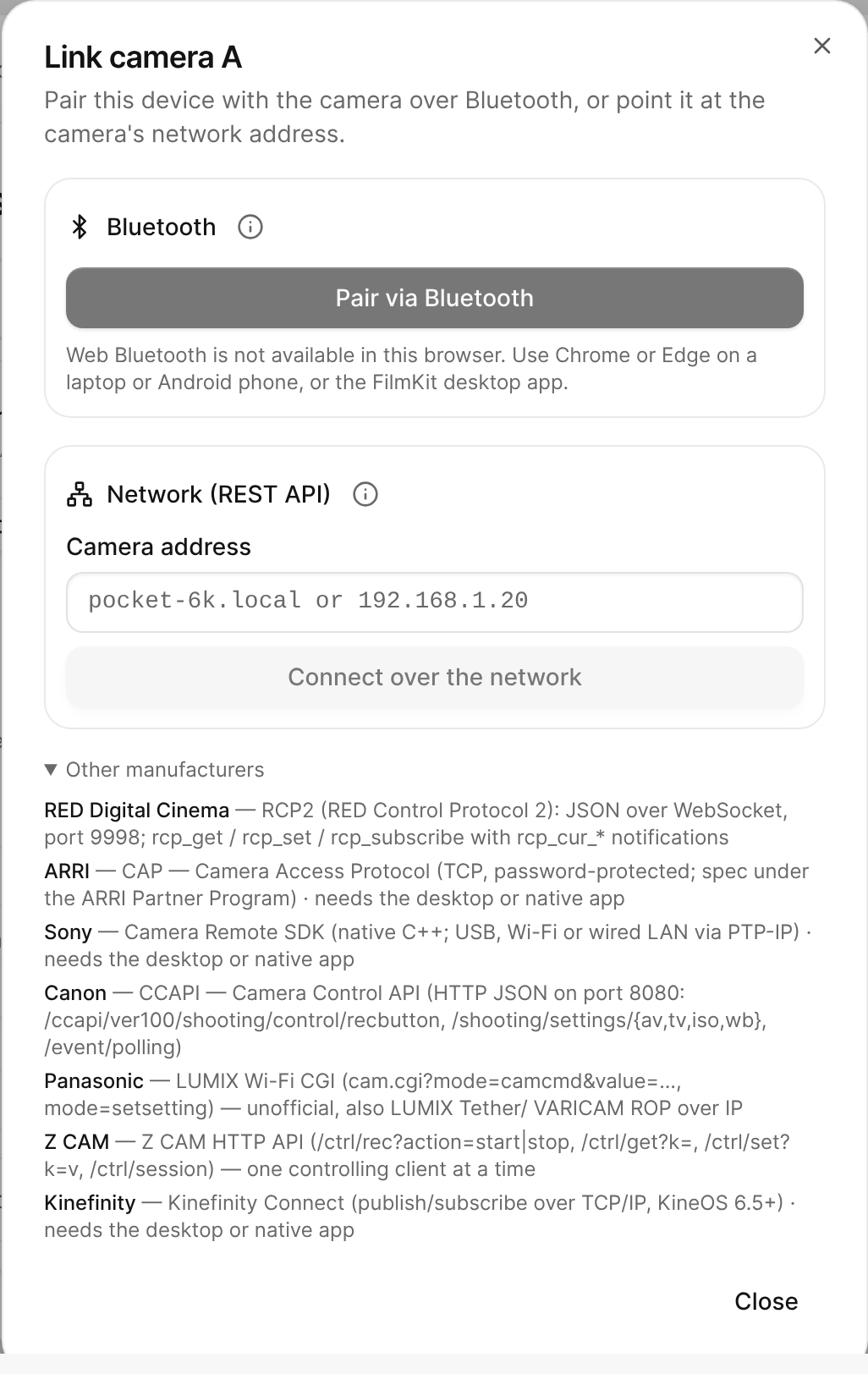
The Link camera A dialog, with Bluetooth pairing and a network address field.

The link appears on the card with its status and the device that holds it. To use a link from this device, click Connect here; to stop, click Disconnect. To forget a link on every device, click Remove.
Other manufacturers — RED, ARRI, Sony, Canon, Panasonic, Z CAM, and Kinefinity — are listed under Other manufacturers in the dialog with their control protocols, for reference. ARRI, Sony, and Kinefinity cameras need the desktop or native app.
Roll and cut
Do one of the following:
- Roll or cut one camera: On the camera's card, click REC. While the camera records, the button reads CUT.
- Roll or cut every camera: When two or more cameras are reachable, click REC ALL or CUT ALL in the bar above the cards.
Change camera settings
On the camera's card, change any of the following:
- ISO, Shutter angle, and Frame rate.
- White balance and Tint: Click Auto for auto white balance, or click Apply to send a tint.
- ND, Iris, and Focus: Click AF for autofocus.
A dimmed control means no connected link of this camera supports it yet. The camera's readings at the top of the card — timecode, ISO, shutter, white balance, ND, iris, frame rate, and battery — update as the camera reports back.
Send the slate to the camera
The card shows the slate for the camera's latest take: scene, take, roll, and camera letter. To put it on the camera's display and in its metadata, click Send slate.
Check or cancel commands
Under the controls, the card lists recent commands and their status, such as queued, sending, done, failed, or expired. To cancel a command that hasn't been sent yet, click Cancel next to it.