Check the day and export camera reports
At wrap, you can use the Report tab of On Set to find takes that are missing something, review the day's totals, and download the camera report and the files editorial needs.

Choose what the report covers
- In a project, click On Set in the sidebar, then click Report.
- At the top of the page, choose a shooting day (or All days), a camera (or Any camera), and a roll (or Any roll).
The wrap check, the day summary, and the exports follow these choices. The roll applies to the camera report PDF.
Fix what the wrap check finds
The Wrap check lists every take that's missing something the camera report needs, with what's wrong — for example, No stop, No TC out, Zoom without focal length, or Clip number gap. Takes marked Conflict contradict themselves or another take, such as a duplicate clip number or a timecode out before the timecode in. When nothing is flagged, it reads All clear.
- In the Wrap check, click a take.
The take opens in the log. - Fill in what's missing, then click Save.
While you shoot, the log shows the same flags on the affected cells and a count at the foot of the log. You can add your own required fields in Setup. See Set up logging.
Review the day summary
The Day summary shows the number of takes, setups, circled takes, false takes, and MOS takes, and the footage shot. A table below breaks down takes, circled takes, rolls, clips, and footage for each camera.
Download exports
- Under Exports, click the file you want:
- Camera report (PDF): An A4 camera report for the day, camera, and roll you chose — the sheet the camera department hands over at wrap.
- Master CSV: Every take with its logged fields, for a spreadsheet or a DIT tool.
- Resolve markers (EDL): Markers for DaVinci Resolve.
- Premiere markers (XML): Markers for Adobe Premiere Pro.
- Final Cut markers (FCPXML): Markers for Final Cut Pro.
- Camera handoff: A plain-text sheet for whoever takes over the camera: its settings, the current roll and next clip number, the last take's setup, and recent camera events. Choose a camera first.
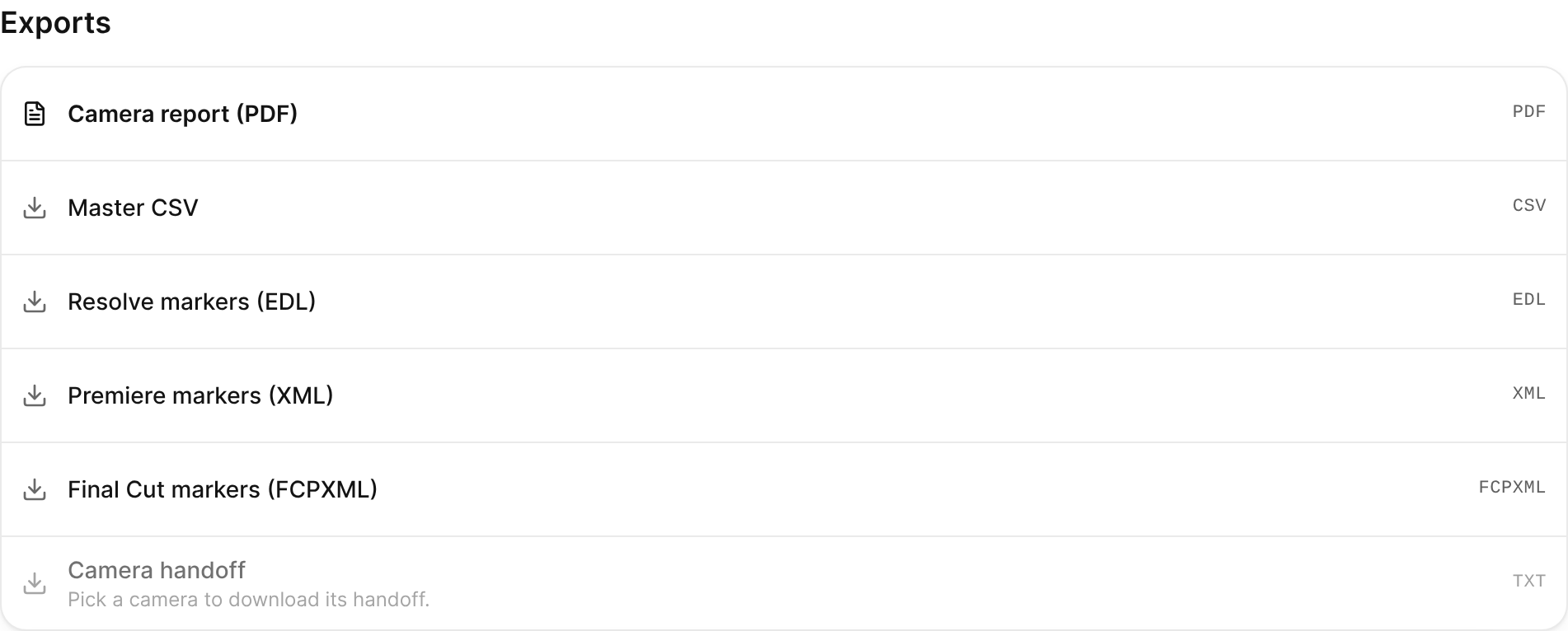
The Exports list, led by Camera report (PDF), followed by the CSV, marker, and handoff downloads. - Save the file when your browser asks.

To fill the takes from the DIT's clip sheet, click Import a clip sheet on Footage. See Import and export footage.