Your first steps in FilmKit
Welcome aboard. Here is how to make FilmKit your own and get your first production moving, one step at a time.

Six steps from first login to shoot day
Take them in any order and come back whenever you like. Each step links to the page of the user guide that walks you through it.
- Your space
Make your space yours
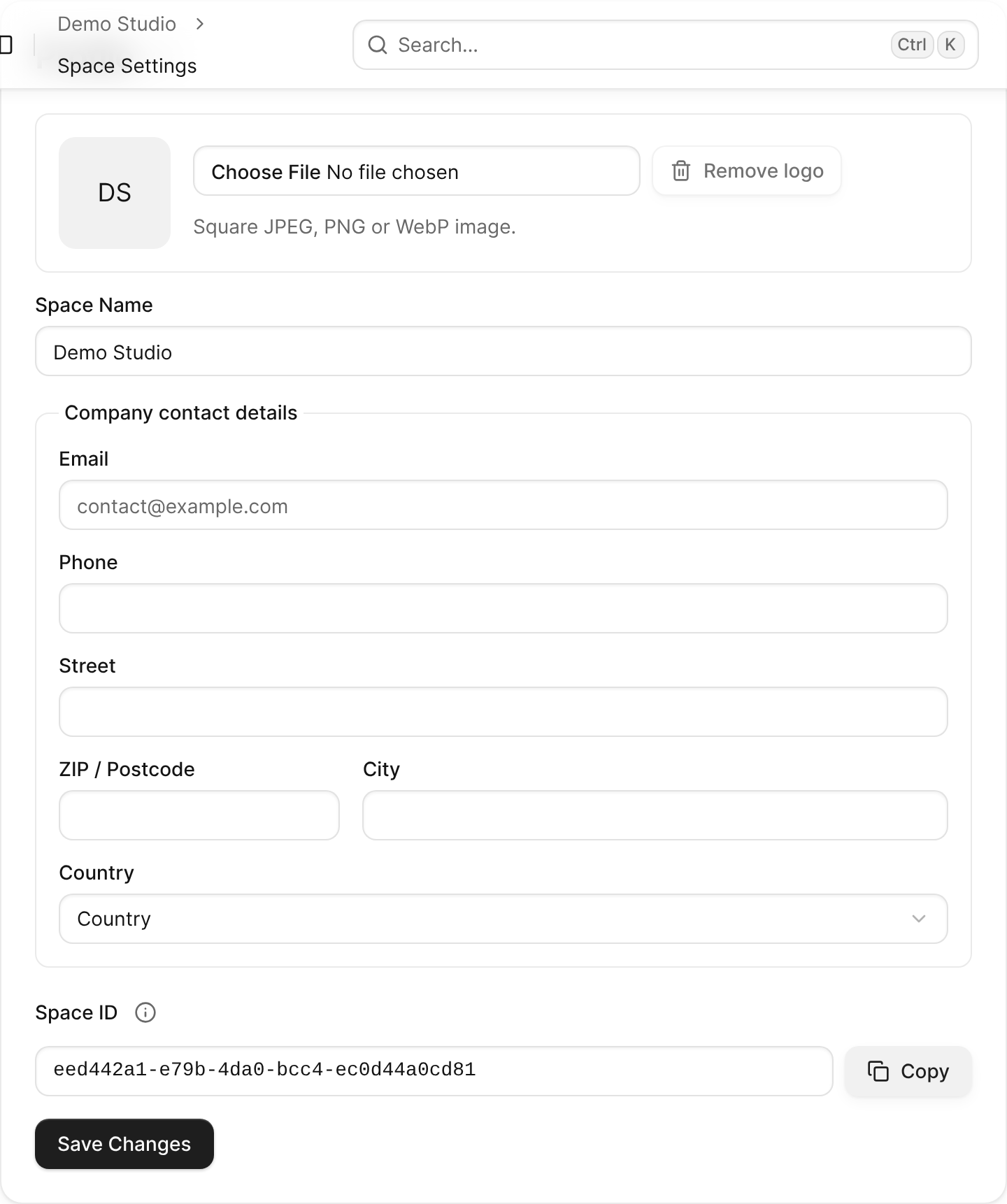
Your space is the home of your production company, your collective or just you. Give it your name, your logo and your contact details, and everything you send out from FilmKit carries your brand, not ours.
- Add your company logo, with a second version for dark backgrounds if you have one
- Set the space name and your company email, phone and address
- Your logo appears beside each project's own title logo
Your brand on everything you publish
Set it up once in Space Settings. From then on, your name, logo and contact details go out with the documents you publish, the emails you send and the pages you share.
Call sheets
Every call sheet you publish carries your logo and your company details.
PDFs
Shot lists, the screenplay's title page and every other PDF you export or publish.
Emails
The emails you send from FilmKit, such as call sheets to the people working that day.
Shared pages
The pages you share with cast, crew and clients, in light and dark mode.
- Your project
Set up your first project
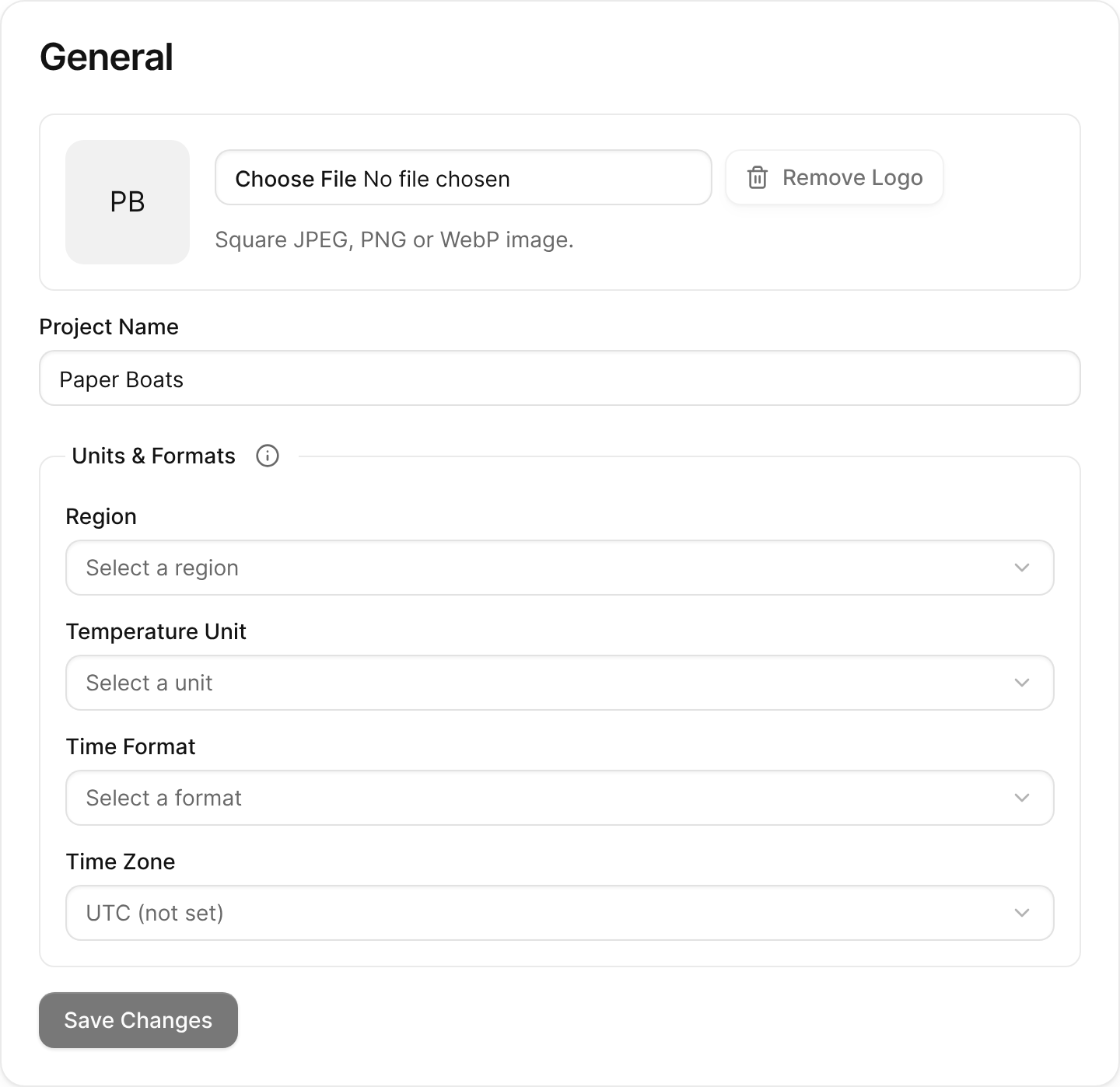
Create a project for each film, series, commercial or short you make. Its type decides which tools the sidebar starts with, and its settings make sure everything looks right on paper.
- Choose the type: commercial, short film, feature, series, music video or other
- Add the production's title logo, shown together with your company logo
- Set the region, temperature unit, 12- or 24-hour time and time zone
- Watermark casting sides with each applicant's name
- Your script
Bring in your script
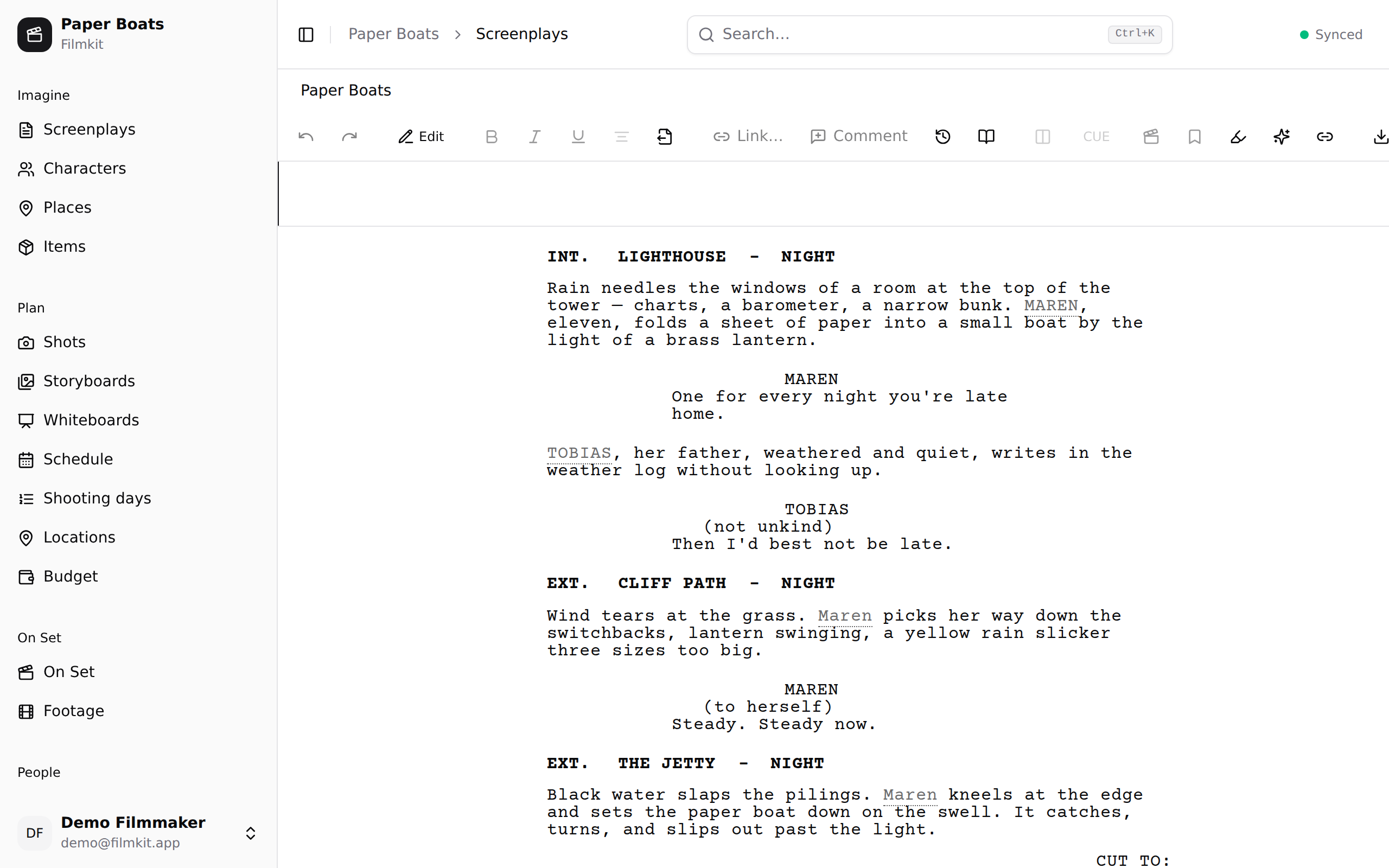
Start a blank screenplay or import the one you already have. FilmKit picks up the scenes, characters and places, so everything else can be planned from them.
- Import Fountain, Final Draft or PDF files
- Review the characters and places before anything is created
- Re-import a revised draft and keep your plans linked to the scenes that didn't change
- Your plan
Shape the story and plan your shots
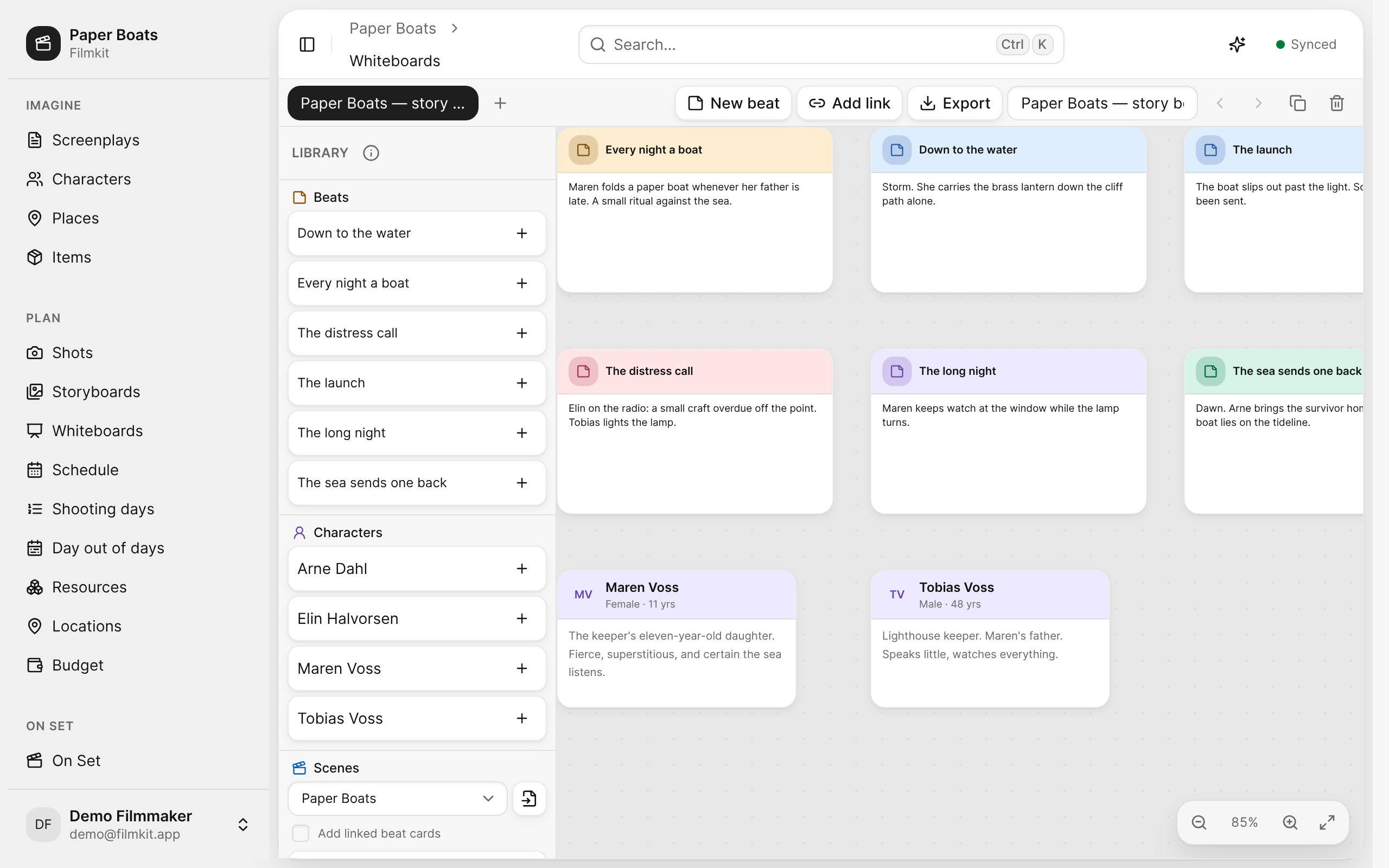
Work out the structure on a whiteboard, then plan how you'll film it, scene by scene. It's all built on the screenplay's scenes, so the plan keeps up as the script changes.
- Arrange beats, characters and scenes on whiteboards
- List each scene's shots with size, angle, move and lens
- Draw storyboards by hand, or have Robodraw draw a frame
- Your shoot
Schedule the shoot and send call sheets
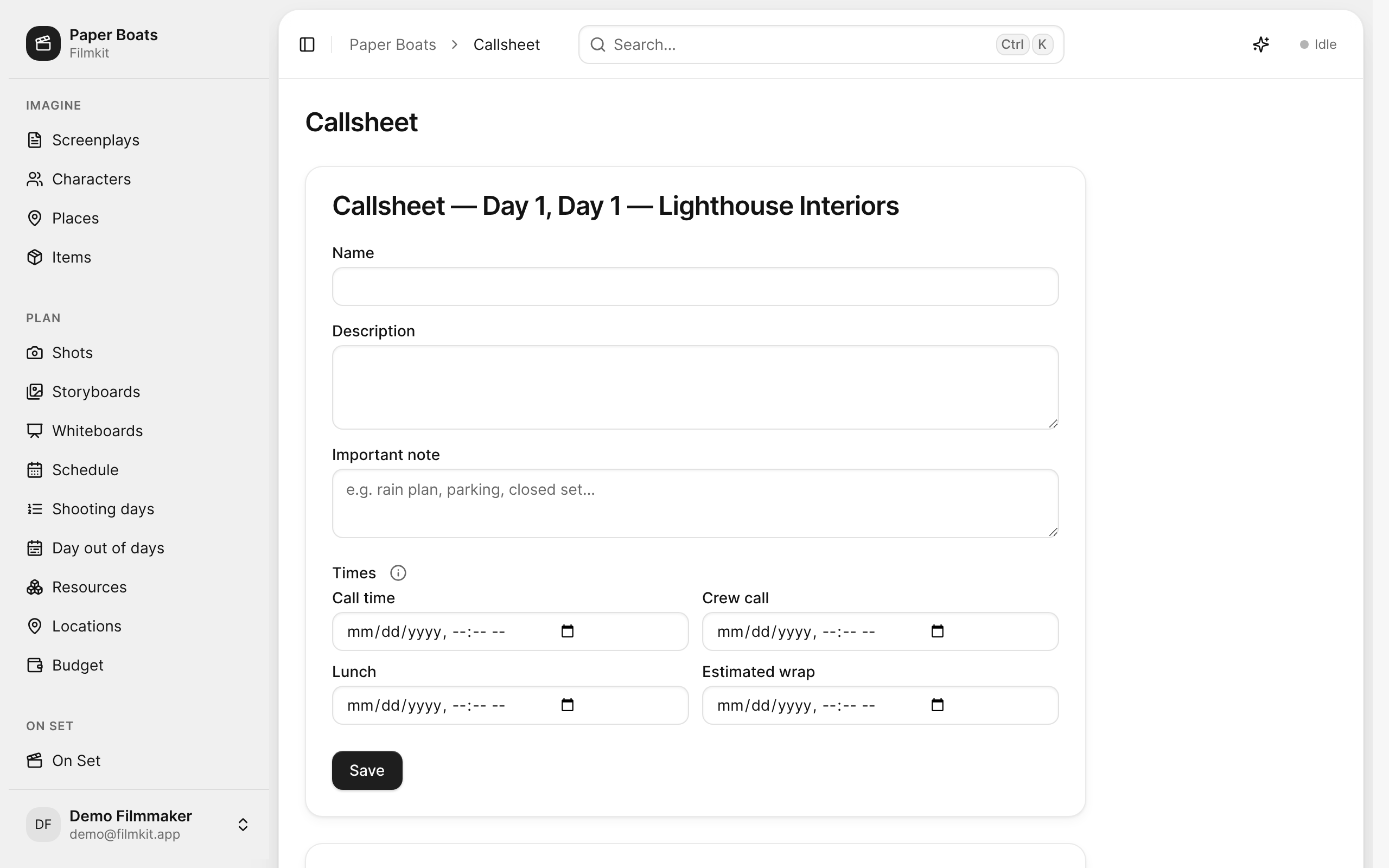
Place your scenes on shooting days, and each day's call sheet is built from its schedule. Publish it, email it to everyone working that day and see who has confirmed. They don't need a FilmKit account.
- Schedule scenes onto shooting days in a calendar or a list
- Call times come straight from the day's schedule
- Publish revisions and track who received and confirmed
- Your team
Invite your team
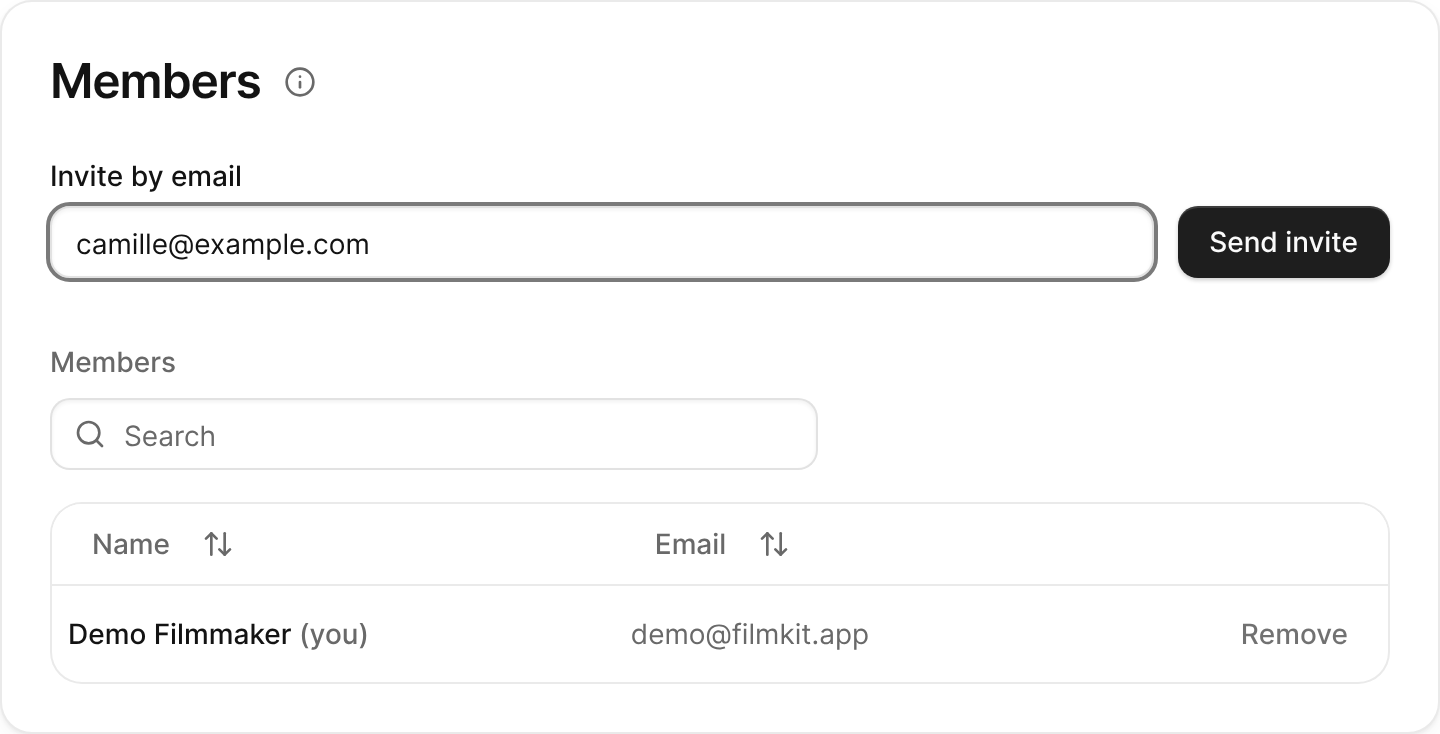
Invite the people you work with to your space once, and they work with you in every project. Cast and crew can get a role on just the projects they're on, or simply receive what you publish.
- Invite people by email from Space Settings
- Choose whether they join as a member, an admin or an owner
- People who only view, such as cast and crew, never use a seat


Get found, and find your next role
Actors and crew can create a profile in the FilmKit directory and apply for casting calls and crew jobs with it. A new profile starts hidden, so you can finish it before anyone sees it.
- Create a profile for each kind of work you do
- Choose who can see it
- Apply for open casting calls with your cast profile

Questions along the way?
Write to support@filmkit.app or call +41 61 551 22 46 and we'll help you get going.
All the ways to reach us