Arrange the story on whiteboards
You can work out the structure of your story on a whiteboard — a shared canvas where you place and move cards. Cards can be story beats, characters, scenes, storyboards, or links to outside material such as videos and documents.

Create a whiteboard
- In a project, click Whiteboards in the sidebar.
- Do one of the following:
- If the project has no whiteboards yet: Click Create whiteboard.
- If the project already has whiteboards: Click the New whiteboard button next to the tabs.
An empty whiteboard opens, and a tab for it appears at the top of the page.
Add cards
Do any of the following:
- Add a beat: Click New beat. A beat card appears in the middle of the canvas.
- Add a character, scene, storyboard, or existing beat: In the Library at the left of the canvas, drag an item from Beats, Characters, Scenes, or Storyboards onto the canvas, or click next to it. On a small screen, click the Open library button first.
- Add every scene of a screenplay: In the library, under Scenes, choose a screenplay, then click the Import screenplay scenes button. To add a beat card for each scene too, select Add linked beat cards first.
- Add a link: Click Add link, paste a link — for example, a YouTube video or a Google Doc — then click Save. The card shows a preview of the link.
Character, scene, and storyboard cards show the current catalog entry, scene, or panel, so they stay up to date as the project changes.

Edit and arrange cards
Do any of the following:
- Move a card: Drag it.
- Resize a card: Drag the resize handle at its corner.
- Edit a beat: Click the beat card, then change its Beat title, Beat description, or Color, and click Save. Beats are shared with the screenplay's outlines, so changes appear there too.
- Draw on a storyboard: Click the storyboard card. Your strokes appear on the storyboard panel for everyone.
- Pin a beat to a scene: Click on the beat card, choose a Scene, then click Pin. If the beat isn't in that screenplay's outlines yet, it's added to the bottom lane at the scene's page when the screenplay is open. See Outline the story above the timeline.
- Duplicate or remove a card: Click or on the card. Removed cards move to the project's Trash, where you can restore them. See Restore deleted items from the Trash.
Export a whiteboard
- With the whiteboard open, click at the top of the page.
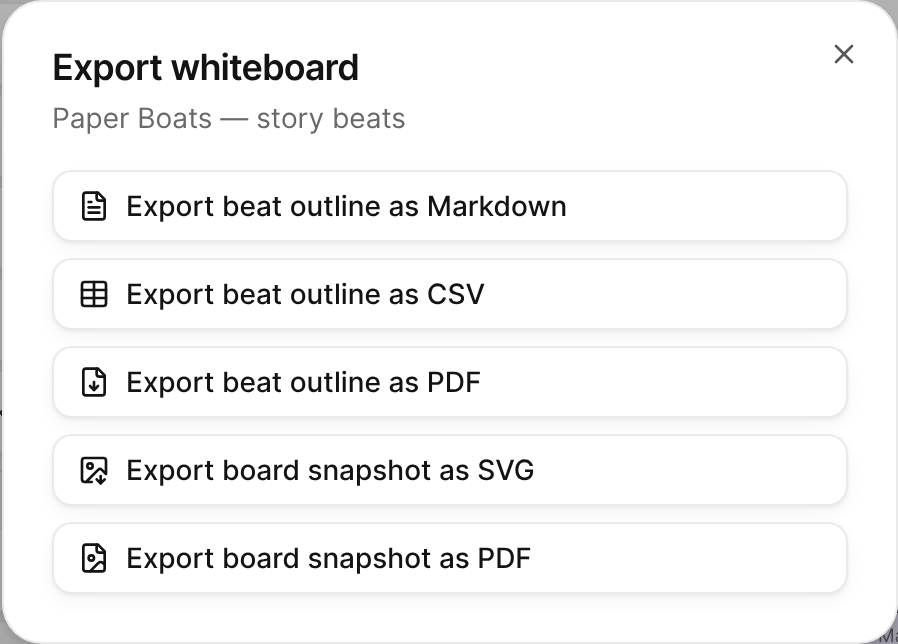
The Export whiteboard dialog, with the beat outline formats and the board snapshot formats. - In the Export whiteboard dialog, click one of the following:
- Export beat outline as Markdown, Export beat outline as CSV, or Export beat outline as PDF: Exports the board's beats, in reading order, as a text outline, a spreadsheet, or a PDF. These options are available when the board has at least one beat.
- Export board snapshot as SVG or Export board snapshot as PDF: Exports a picture of the whole board.

Rename, reorder, duplicate, or delete a whiteboard
With the whiteboard open, do any of the following:
- Rename it: Enter a new name in the title field at the top of the page, then press Return.
- Move its tab: Click or .
- Duplicate it: Click .
- Delete it: Click , then click Delete whiteboard. The whiteboard moves to the project's Trash. When you restore it, its cards come back with it.