Get help from the FilmKit team
You can look up an answer in this guide without leaving your work, write to the FilmKit team, or call the support line. The team replies in FilmKit, and you get a notification when they do.
Find an answer in the guide
- At the top of the screen, click the Help & feedback button .
The Help panel opens beside the page you're working on. - Click Docs, then search the guide or choose a page from its contents.
To open the page you're reading in its own browser tab, click .
Write to the FilmKit team
- At the top of the screen, click , then click Ask us.
- Click what your message is about: Question, Problem, or Idea.
- Enter your message.
- Click Send.
A conversation with the team starts, and "Message sent to the FilmKit team." appears.
FilmKit adds a few details to your message so you don't have to type them, such as the page you're on, your device, and the app version. To leave one out, click Included with your message, then deselect it before you send.
See your conversations and reply
- Click your name at the bottom of the sidebar, then choose Help & feedback.
Your conversations appear with their status: Waiting for the team, Replied, or Resolved. - Click a conversation to read it.
- Enter your reply, then click Send.
To start another conversation from this page, click New message. You can also answer a reply by replying to its email.
Call the FilmKit team
The support line's number is under Ask us in the Help panel and at the top of the Help & feedback page. Click the number to call it from your device.
During office hours, a member of the team answers. When the line is closed or nobody is free, you can leave a voicemail, and the team answers it like a written message.
If you've added and confirmed your phone number, the support line recognizes you and answers in your language. See Change account settings.
Prove who you are when you call
Before the team checks your account or changes anything on it during a call, they ask for your support code. Only you can see it, while you're signed in, so it shows that the caller is really you.
- Click your name at the bottom of the sidebar, then choose Help & feedback.
The Support code shows six digits and the seconds until the next code. You'll also find it under Ask us in the Help panel.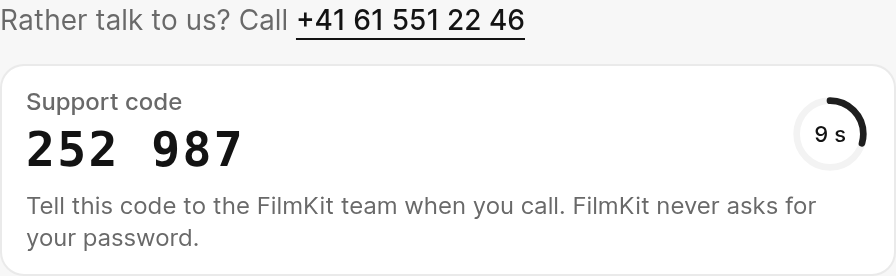
The support line's number and a support code on the Help & feedback page. - Read the six digits to the person from the FilmKit team.
They type it into FilmKit, which tells them only whether it's correct.

The code changes every 30 seconds and works only once. A code that changed while you were reading it still works. FilmKit has no passwords, and the team never asks for your passkey: your support code is all they need. Never read it to anyone else.
The support code isn't the code you type on the keypad to confirm your phone number.
When the team has verified you with your code, you get a notification: "Your support code was used to verify you on a call". Unless you've turned it off, it also reaches you by email.