Link script text to the catalog
You can link any text in the screenplay to a character, place, or item in the catalog. Links tell FilmKit which scenes need what, so the breakdown, a character's references, and AI storyboard frames all follow the script.
FilmKit links most cues and scene headings as you type them. You link other mentions — a prop in the action, a character named in dialogue — yourself.
Link cues and scene headings as you write
- In the screenplay editor, start typing a character cue or the setting of a scene heading.
A list of matching characters or places appears below the text. - Do one of the following:
- Use an existing entry: Choose it in the list (or press Return).
- Create a new entry: Choose Create "…" at the end of the list.
The text is linked to the entry. A new character or place appears in the catalog right away.
To link a scene to more than one place — for example, a scene that moves between two rooms — click next to a place in the list. The place is added to the scene without changing the heading.
Link any text to an entry
- In the screenplay editor, select the text you want to link — for example, the name of a prop in the action.
- Choose Insert > Entity link….
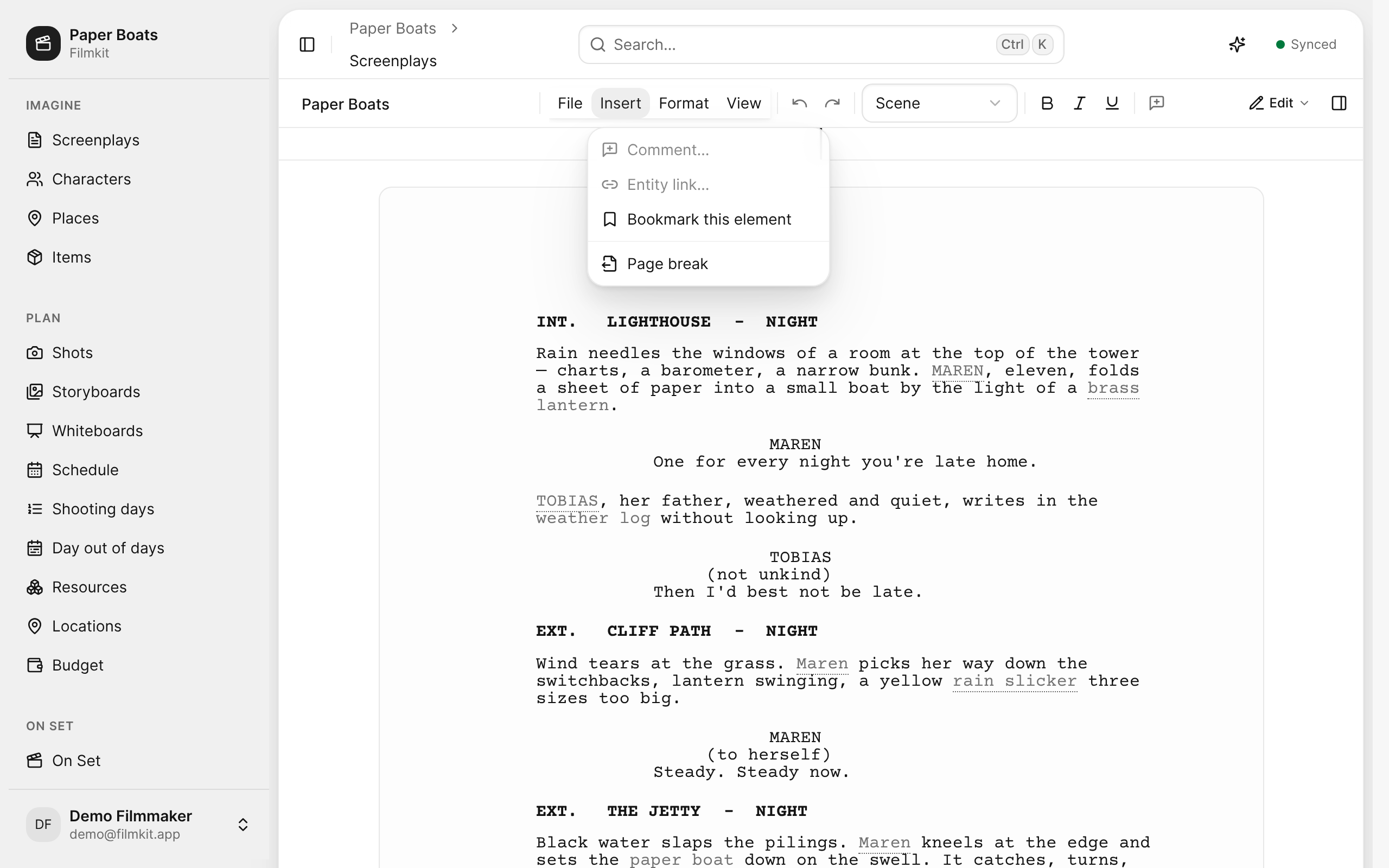
The Insert menu in the screenplay editor, with Entity link selected. - Do one of the following:
- Link to an existing entry: Enter part of its name, then choose it in the list.
- Create an entry and link to it: Enter a name, choose Character, Item, or Place from the menu, then click Create "…". For an item, you can also enter how many the scene needs.

Accept link hints
When Link hints is turned on, FilmKit underlines unlinked mentions of catalog names in action and dialogue with a dotted line.
- In the screenplay editor, click an underlined mention.
- Do one of the following:
- Link the mention: Click Link to ….
- Ignore it: Click Dismiss. The hint stays hidden until you reload the page.
To turn hints on or off, choose View > Link hints. FilmKit never links a hint for you.
Link names when you import a screenplay
When you import a screenplay, select Link imported characters & places in the import review. FilmKit links character cues, the places in scene headings, and matching mentions in action and dialogue. See Create or import a screenplay.
Find the linked text for an entry
- In the screenplay editor, click the side panel button , then click the Characters or Places tab.
Each entry shows how many links it has in this screenplay. - To jump through the linked passages one by one, click the number of links.
You can also open a character's References tab to see every linked passage across all screenplays. See Build characters and the character bible.