Post a crew job
You can post an open crew position from your project to FilmKit's public Crew jobs board, where crew members find it and express interest. You can edit the posting at any time, and close it when you've found the right person.
Create and publish a posting
- In a project, click Crew in the sidebar.
- Click .
- In the New crew posting dialog, enter a Title, such as "Gaffer — 3 week shoot".
- Optionally choose a Role and a Department.
Crew filter the jobs board by department and role, so setting them helps the right people find the posting. - Enter a Description of the job.
- Enter the Location (a city), and choose a Start date and End date.
- To show a rate, enter Rate min, Rate max, or both, choose a Currency, and choose how the rate is paid in the Per menu: per hour, per day, per week, or flat.
- If it's a union job, select the Union position checkbox.
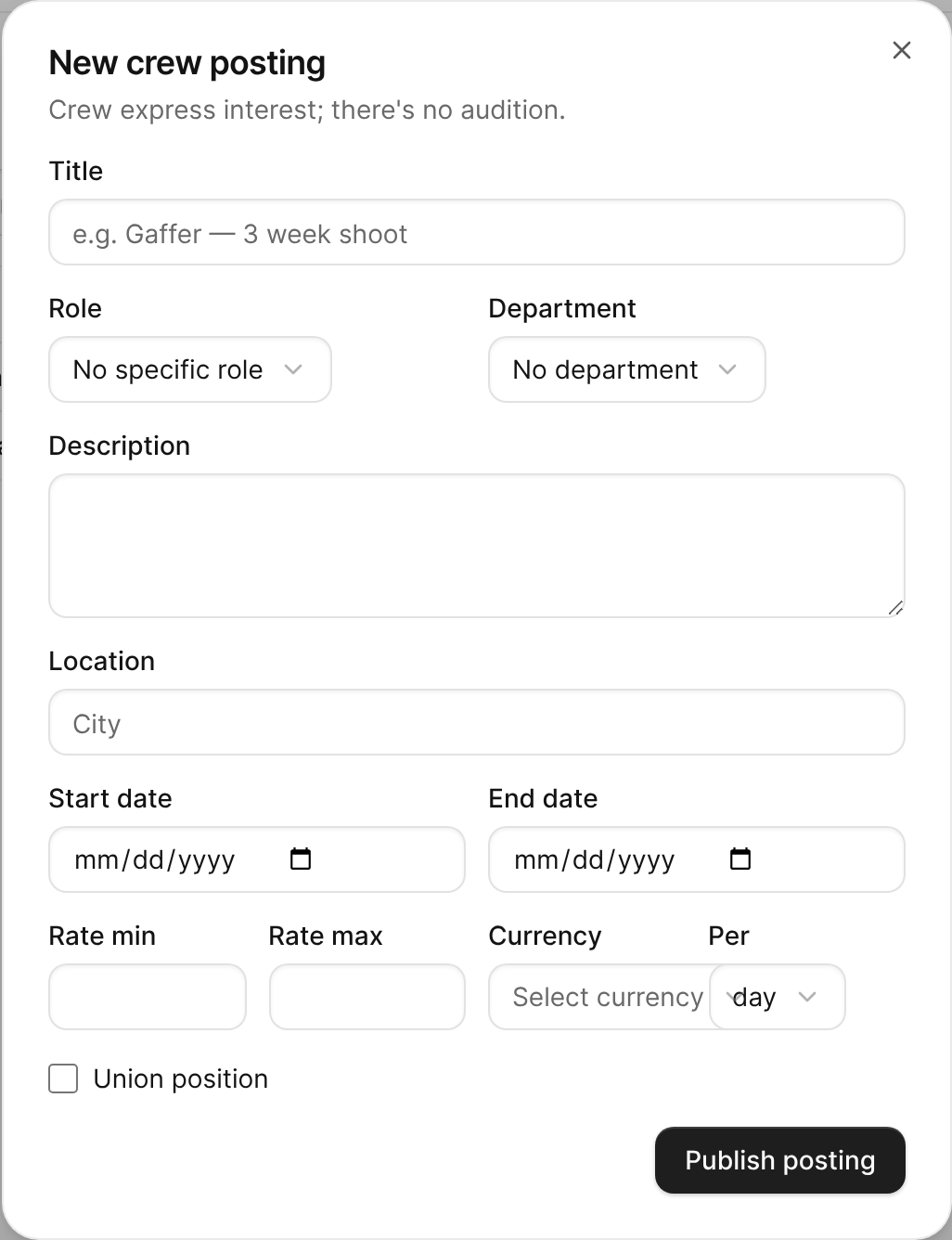
The New crew posting dialog with title, role, dates, rate, and union fields. - Click Publish posting.
The posting appears in the project's Crew list as Open, and on the public Crew jobs board.

Edit a posting
- In the project's Crew list, click the posting.
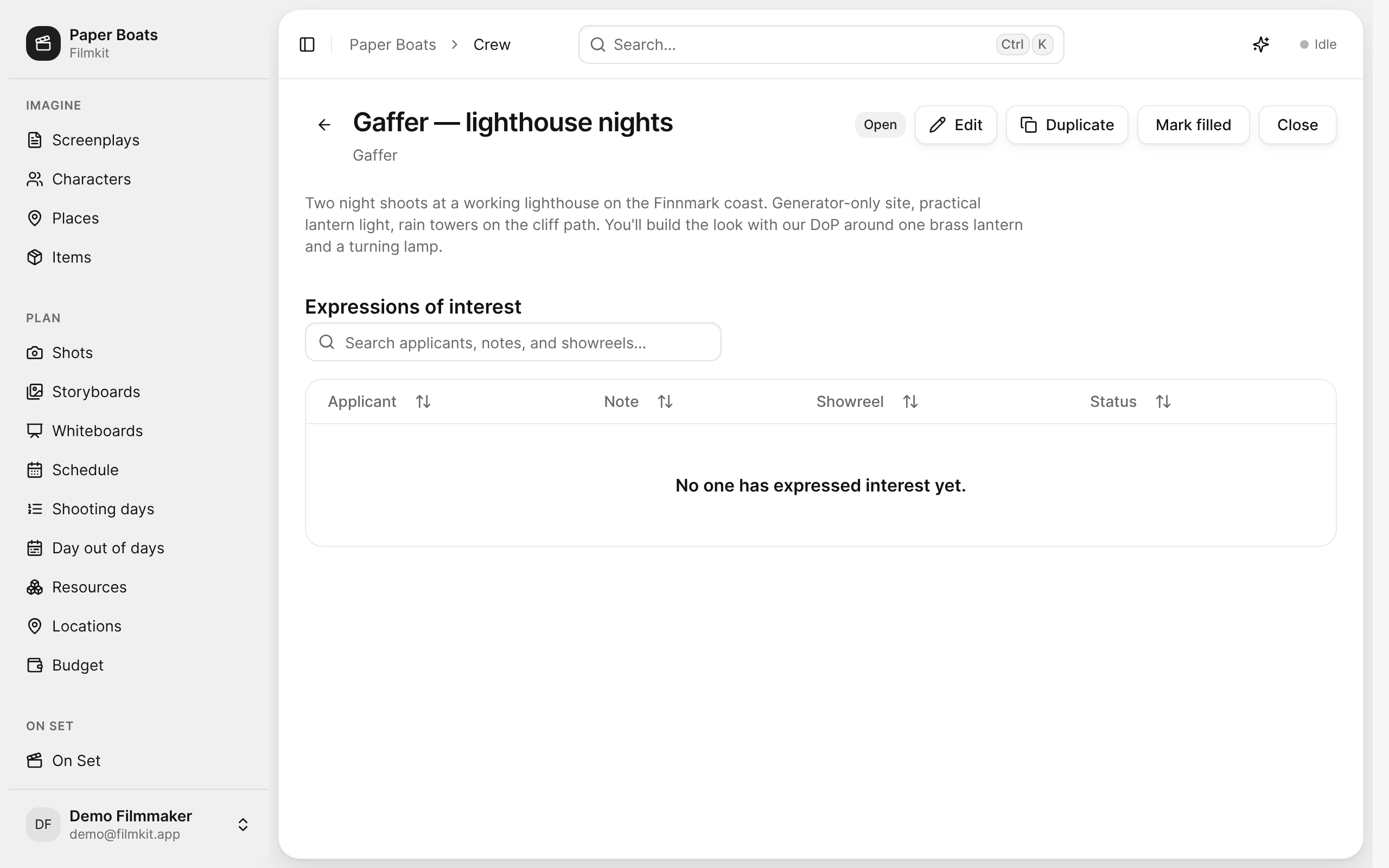
A crew posting with its actions and the Expressions of interest list. - Click .
- In the Edit posting dialog, make your changes, then click Save changes.

Saving updates the public posting. If the posting was closed, saving reopens it.
Close, fill, or reopen a posting
On the posting's page, do one of the following:
- Stop taking interest: Click Close, then click Close posting.
- Mark the position as filled: Click Mark filled, then click Mark filled again to confirm.
- Take interest again: Click .
A closed or filled posting drops off the crew jobs board. The people who already expressed interest stay on the posting.
Duplicate a posting
To post a similar position, click on the posting's page, then edit the copy.